

![]() |
|
![]() |
|
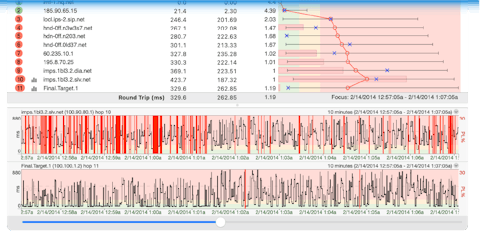
Problem notification - Tray Icon Alert The Tray Icon alert is a very handy alert that changes the PingPlotter tray icon to red when the alert has fired. If you don't have PingPlotter in the tray already, then a red icon will be added to the tray. When the alert condition(s) are over, and if you were running PingPlotter in the tray, the icon will change back to green. Remember when we did the first trace in Discovering the route between you and a target, and it was suggested that you use Pizza Hut's ordering site as a destination? Let's stretch this pizza theme a little further. Now instead of just monitoring the connection to quikorder.pizzahut.com with PingPlotter, let's assume that you really need to know if the latency to the Pizza Hut ordering system grows extremely high, or (even worse!) the site becomes inaccessible. Hunger can be time sensitive... Since you only really care about the online ordering system when you're sitting at your computer, a Tray Icon alert is a perfect solution for this. In addition to watching the order site though, we also want to watch for problems that are somewhat more within our control, namely our ISP. Where the network traffic leaves your ISP and hits the Internet "at large" is a great place to do this. To start with, startup a PingPlotter trace like we did in Discovering the route between you and a target, with the target being quikorder.pizzahut.com. A lot of problems can originate from your own ISP (plus we're learning here), so let's watch that hop first. Pick the hop that looks like the gateway where your traffic leaves your network or ISP and hits the Internet. In our screenshot on the PingPlotter site, for instance, it's pretty easy to tell that we leave that person's ISP (in this case RoadRunner, denoted by all the hops ending in rr.com) at Hop 8, and hit the Internet at Hop 9. Find your own ISP's gateway in your trace, and that's where you're going to assign the alert. Right-click on the Hop you've found, and go into Watch this host (Alerts).... Note: Another way to get into the Alert Setup is to use the Alert Setup... option from the Edit menu. You should have a dialog box like the one below.
Click on the Edit Alerts button, and you'll then have the Alert Setup screen up.
Click the New button in the lower left hand corner, and then put Tray Alert in the Alert Name: box. If you were doing your own alert outside of this exercise, you might want to give it a different name. The point here is to name it something that's meaningful to you. Since we're practicing here, and want to make sure this alert fires (and fires quickly), we want to set up the alert so it's pretty much guaranteed to "fire". Use the parameters in the image above. Samples to Examine: 10 This means the alert will look at the 10 most recent collected samples and if 10 (or all, in this case) samples are over 5 ms of latency, then fire the alert. You might want to say "1 or more samples" instead of 10, or maybe you want to say 500 ms instead of 5. For now, though, let's pick conditions that will guarantee the alert will fire. Of course the value for "samples are over" would be much higher if we weren't practicing, but it is a good idea to set this value low initially to test the alert. Next, click on the Event Type: list box, pick Tray icon change / notification and then check the two alert notifications.
If you click the OK button, you'll be back into the Alert on Host dialog. Notice that it's different now, and we have an alert listed under Available Alert(s). You might be tempted to just click OK here, but you'd then be wondering why your alert isn't firing later on. The key here is that we have not assigned our alert to this hop yet. This really throws a lot of people! What you want to do now is click on your new alert, and then click the left arrow between the Selected Alerts(s) and the Available Alerts(s) to assign your alert to this hop. Now you can click the OK button to finish assigning the alert.
To speed up the firing of your alert, drop the Trace Interval down to one second. Just as a note: the Samples to Include: and the focus of the graphs is not factored into the alerts firing or not. The alert always looks at the most current samples that are arriving, no matter which samples your graphs are focused on.
Remember, you can now assign this alert to multiple hops by right-clicking on that hop, going into Watch this host (Alerts).... and assigning it to that hop.
As mentioned previously, one alert can be assigned to multiple hops. Go through now and follow the same steps to assign this alert to the target quikorder.pizzahut.com. By now you should be able to see the benefits of just this one alert event. Because PingPlotter runs in the background with a relatively light footprint, you can have it running minimized to the taskbar or in the system tray constantly - consuming just a small amount of resources. You can then have your Tray Icon Alert(s) assigned to different hops of interest so that PingPlotter can get your attention whenever the alert conditions you set are met. When you're comfortable with this alert type, and the alert dialog, go ahead and move on to the next section where you'll set up a Send an email alert. Then you’ll have the capability to know about a problem when you're not even sitting at your computer. |


PingPlotter should now have put
Notice the
One great feature that's been added in PingPlotter 2.60 is that you also get notification on the hop itself when it fires. Notice the