

/* --- Script © 2005-2007 EC Software --- */
var ua = navigator.userAgent;
var dom = (document.getElementById) ? true : false;
var ie4 = (document.all && !dom) ? true : false;
var ie5_5 = ((ua.indexOf("MSIE 5.5")>=0 || ua.indexOf("MSIE 6")>=0) && ua.indexOf("Opera")<0) ? true : false;
var ns4 = (document.layers && !dom) ? true : false;
var offsxy = 6;
function hmshowPopup(e, txt, stick) {
  var tip = '<table  border="1" cellpadding="6" cellspacing="0" bgcolor="#FFFF84" style="{border-width:1px; border-color:#000000; border-collapse:collapse;}"><tr valign=top><td>'+ txt + '<\/td><\/tr><\/table>';
  var tooltip = atooltip();
  e = e?e:window.event;
  var mx = ns4 ? e.PageX : e.clientX;
  var my = ns4 ? e.PageY : e.clientY;
  var obj   = (window.document.compatMode && window.document.compatMode == "CSS1Compat") ? window.document.documentElement : window.document.body;
  var bodyl = (window.pageXOffset) ? window.pageXOffset : obj.scrollLeft;
  var bodyt = (window.pageYOffset) ? window.pageYOffset : obj.scrollTop;
  var bodyw = (window.innerWidth)  ? window.innerWidth  : obj.offsetWidth;
  if (ns4) {
    tooltip.document.write(tip);
    tooltip.document.close();
    if ((mx + offsxy + bodyl + tooltip.width) > bodyw) { mx = bodyw - offsxy - bodyl - tooltip.width; if (mx < 0) mx = 0; }
    tooltip.left = mx + offsxy + bodyl;
    tooltip.top = my + offsxy + bodyt;
  }
  else {
    tooltip.innerHTML = tip;
    if (tooltip.offsetWidth) if ((mx + offsxy + bodyl + tooltip.offsetWidth) > bodyw) { mx = bodyw - offsxy - bodyl - tooltip.offsetWidth; if (mx < 0) mx = 0; }
    tooltip.style.left = (mx + offsxy + bodyl)+"px";
    tooltip.style.top  = (my + offsxy + bodyt)+"px";
  }
  with(tooltip) { ns4 ? visibility="show" : style.visibility="visible" }
  if (stick) document.onmouseup = hmhidePopup;
}
function hmhidePopup() {
  var tooltip = atooltip();
  ns4 ? tooltip.visibility="hide" : tooltip.style.visibility="hidden";
}
function atooltip(){
 return ns4 ? document.hmpopupDiv : ie4 ? document.all.hmpopupDiv : document.getElementById('hmpopupDiv')
}
popid_1440920797X="<p class=\"p_PageTitle\"><div style=\"line-height:normal\">\n\r<\/p>\n\r<div style=\"text-align: left; text-indent: 0px; padding: 0px 0px 0px 0px; margin: 1px 0px 7px 0px;\"><table cellspacing=\"0\" cellpadding=\"0\" border=\"0\" style=\"border: none; border-spacing:0px;\">\n\r<tr style=\"text-align:left;vertical-align:top;\">\n\r<td valign=\"top\" width=\"94px\" style=\"width:94px;\"><p class=\"p_PopupText\" style=\"margin: 2px 0px 2px 5px;\"><span class=\"f_PopupText\">\$host<\/span><\/p>\n\r<\/td>\n\r<td valign=\"top\"><p class=\"p_PopupText\" style=\"margin: 2px 0px 2px 5px;\"><span class=\"f_PopupText\">Host name (or IP address, if no name exists).&nbsp; <\/span><\/p>\n\r<\/td>\n\r<\/tr>\n\r<tr style=\"text-align:left;vertical-align:top;\">\n\r<td valign=\"top\" width=\"94px\" style=\"width:94px;\"><p class=\"p_PopupText\" style=\"margin: 2px 0px 2px 5px;\"><span class=\"f_PopupText\">\$hostip<\/span><\/p>\n\r<\/td>\n\r<td valign=\"top\"><p class=\"p_PopupText\" style=\"margin: 2px 0px 2px 5px;\"><span class=\"f_PopupText\">The host IP address<\/span><\/p>\n\r<\/td>\n\r<\/tr>\n\r<tr style=\"text-align:left;vertical-align:top;\">\n\r<td valign=\"top\" width=\"94px\" style=\"width:94px;\"><p class=\"p_PopupText\" style=\"margin: 2px 0px 2px 5px;\"><span class=\"f_PopupText\">\$hostdnsname<\/span><\/p>\n\r<\/td>\n\r<td valign=\"top\"><p class=\"p_PopupText\" style=\"margin: 2px 0px 2px 5px;\"><span class=\"f_PopupText\">The resolved DNS name for the host<\/span><\/p>\n\r<\/td>\n\r<\/tr>\n\r<tr style=\"text-align:left;vertical-align:top;\">\n\r<td valign=\"top\" width=\"94px\" style=\"width:94px;\"><p class=\"p_PopupText\" style=\"margin: 2px 0px 2px 5px;\"><span class=\"f_PopupText\">\$year<\/span><\/p>\n\r<\/td>\n\r<td valign=\"top\"><p class=\"p_PopupText\" style=\"margin: 2px 0px 2px 5px;\"><span class=\"f_PopupText\">Current Year<\/span><\/p>\n\r<\/td>\n\r<\/tr>\n\r<tr style=\"text-align:left;vertical-align:top;\">\n\r<td valign=\"top\" width=\"94px\" style=\"width:94px;\"><p class=\"p_PopupText\" style=\"margin: 2px 0px 2px 5px;\"><span class=\"f_PopupText\">\$month<\/span><\/p>\n\r<\/td>\n\r<td valign=\"top\"><p class=\"p_PopupText\" style=\"margin: 2px 0px 2px 5px;\"><span class=\"f_PopupText\">Current Month<\/span><\/p>\n\r<\/td>\n\r<\/tr>\n\r<tr style=\"text-align:left;vertical-align:top;\">\n\r<td valign=\"top\" width=\"94px\" style=\"width:94px;\"><p class=\"p_PopupText\" style=\"margin: 2px 0px 2px 5px;\"><span class=\"f_PopupText\">\$day<\/span><\/p>\n\r<\/td>\n\r<td valign=\"top\"><p class=\"p_PopupText\" style=\"margin: 2px 0px 2px 5px;\"><span class=\"f_PopupText\">Current day of month<\/span><\/p>\n\r<\/td>\n\r<\/tr>\n\r<tr style=\"text-align:left;vertical-align:top;\">\n\r<td valign=\"top\" width=\"94px\" style=\"width:94px;\"><p class=\"p_PopupText\" style=\"margin: 2px 0px 2px 5px;\"><span class=\"f_PopupText\">\$hour<\/span><\/p>\n\r<\/td>\n\r<td valign=\"top\"><p class=\"p_PopupText\" style=\"margin: 2px 0px 2px 5px;\"><span class=\"f_PopupText\">Current hour<\/span><\/p>\n\r<\/td>\n\r<\/tr>\n\r<tr style=\"text-align:left;vertical-align:top;\">\n\r<td valign=\"top\" width=\"94px\" style=\"width:94px;\"><p class=\"p_PopupText\" style=\"margin: 2px 0px 2px 5px;\"><span class=\"f_PopupText\">\$minute<\/span><\/p>\n\r<\/td>\n\r<td valign=\"top\"><p class=\"p_PopupText\" style=\"margin: 2px 0px 2px 5px;\"><span class=\"f_PopupText\">Current minute<\/span><\/p>\n\r<\/td>\n\r<\/tr>\n\r<tr style=\"text-align:left;vertical-align:top;\">\n\r<td valign=\"top\" width=\"94px\" style=\"width:94px;\"><p class=\"p_PopupText\" style=\"margin: 2px 0px 2px 5px;\"><span class=\"f_PopupText\">\$second<\/span><\/p>\n\r<\/td>\n\r<td valign=\"top\"><p class=\"p_PopupText\" style=\"margin: 2px 0px 2px 5px;\"><span class=\"f_PopupText\">Current second<\/span><\/p>\n\r<\/td>\n\r<\/tr>\n\r<tr style=\"text-align:left;vertical-align:top;\">\n\r<td valign=\"top\" width=\"94px\" style=\"width:94px;\"><p class=\"p_PopupText\" style=\"margin: 2px 0px 2px 5px;\"><span class=\"f_PopupText\">\$date<\/span><\/p>\n\r<\/td>\n\r<td valign=\"top\"><p class=\"p_PopupText\" style=\"margin: 2px 0px 2px 5px;\"><span class=\"f_PopupText\">Same as \$year-\$month-\$day.<\/span><\/p>\n\r<\/td>\n\r<\/tr>\n\r<tr style=\"text-align:left;vertical-align:top;\">\n\r<td valign=\"top\" width=\"94px\" style=\"width:94px; height:39px;\"><p class=\"p_PopupText\" style=\"margin: 2px 0px 2px 5px;\"><span class=\"f_PopupText\">\$time<\/span><\/p>\n\r<\/td>\n\r<td valign=\"top\" style=\"height:39px;\"><p class=\"p_PopupText\" style=\"margin: 2px 0px 2px 5px;\"><span class=\"f_PopupText\">The same as \$hour\$minute - note the absence of any punctuation - that\'s to make sure the file name is valid, if this mask is being used in a file name.<\/span><\/p>\n\r<\/td>\n\r<\/tr>\n\r<\/table>\n\r<\/div>\n\r<p class=\"p_PageTitle\"><\/div\n\r<\/p>\n\r"
popid_158339515X="<p class=\"p_PopupText\"><span class=\"f_PopupText\">Any alert can fire one or more &quot;Events&quot; based on the conditions of the alert.&nbsp; Each of these events have different parameters and options.&nbsp; The possible event types are: <a href=\"event_send_email.html\">Send an email<\/a>, <a href=\"event_play_a_sound.html\">Play a sound<\/a>, <a href=\"event_log_to_file.html\">Log to a file<\/a>, <a href=\"event_tray_icon_change.html\">Change the tray icon<\/a>, and <a href=\"event_launch_an_executable.html\">Launch an executable<\/a>.&nbsp; In addition, the Pro version of PingPlotter has the ability to use custom alert events and conditions.&nbsp; These custom types are not covered in this documentation.<\/span><\/p>\n\r"
popid_1303430951X="<p class=\"p_PopupText\"><span class=\"f_PopupText\">The alert name is used to identify the alert when attaching to a host.&nbsp; Make sure you name this something besides &quot;New Alert 7&quot; or it\'s going to be hard to figure out what it does later... :)&nbsp; Of course you can always change the name later, too...<\/span><\/p>\n\r"
popid_1426687546X="<p class=\"p_PopupText\"><span class=\"f_PopupText\">Select how many out of range samples you want to have to happen before the alert fires.&nbsp; Also, select here what &quot;out of range&quot; means.&nbsp; Note that a <\/span><span class=\"f_PopupText\" style=\"font-weight: bold;\">timeout<\/span><span class=\"f_PopupText\"> is always out of range, so you can select any reasonably high number (ie: 9999) to mean timeouts.<\/span><\/p>\n\r"
popid_364813200X="<p class=\"p_PopupText\"><span class=\"f_PopupText\">This specifies the number of samples to examine.&nbsp; This does NOT have to match the &quot;number of samples to include&quot; from the main screen - so you can set up whatever conditions you want.&nbsp; Ping Plotter uses this number when determining if the alert should fire.<\/span><\/p>\n\r"
popid_560728585X="<p>This button\/menu is used when you want to trace to a new target.&nbsp; This will create a new empty target (using the same parameters as the target you\'re currently selecting), in which you can enter a new target and trace.&nbsp; If there\'s already a tab created with no destination, this tab is selected instead of creating a new one.&nbsp; If this option is disabled, that means you\'re all set to enter an address in the &quot;Address to trace&quot; box!<\/p>\n\r"
popid_576081466="<p class=\"p_PopupText\"><span class=\"f_PopupText\">So that your network bandwidth doesn\'t get saturated, PingPlotter waits a tiny amount of time (configurable - but defaults to about 1\/50th of a second) between sending out each hop.<\/span><\/p>\n\r"
popid_1453505450="<p>The tabbed interface of <span class=\"f_PopupText\">PingPlotter Pro<\/span> allows you to trace and monitor multiple targets simultaneously.&nbsp; By default, these display in a tabbed interface.&nbsp; These tabs can be moved by dragging them, and then docked to other areas of <span class=\"f_PopupText\">PingPlotter Pro<\/span>.&nbsp; You can create multiple &quot;floating&quot; windows that have multiple targets in each, or a wide variety of other possibilities.<\/p>\n\r<p>For more details on this, see our help topic on multiple target docking.<\/p>\n\r"
popid_1358847609X="<p class=\"p_PopupText\"><span class=\"f_PopupText\">Jitter is a number that represents how stable the latency responses have been.&nbsp; A low jitter number is usually an indicator of a good connection.&nbsp; High jitter can lead to slow response times, poor voice quality (in Voice over IP) and other connection problems.<\/span><\/p>\n\r"
popid_1308567358="<p class=\"p_PopupText\"><span class=\"f_PopupText\">The Graph focus time controls the period of time you\'re examining in the upper graph on the summary screen.&nbsp; When you double-click on a time graph, the focus <\/span><span class=\"f_PopupText\" style=\"font-style: italic;\">time<\/span><span class=\"f_PopupText\"> will change, but the period being examined will match this time.<\/span><\/p>\n\r<p class=\"p_PopupText\"><span class=\"f_PopupText\">This allows you to compare different targets using different intervals, but compare them as though they were similar.&nbsp; If you select &quot;30 minutes&quot; for this setting, All the routers and targets listed in the upper graph will be focused on this amount of time (or as close as possible - sometimes the sample don\'t correlate to the value you picked!).<\/span><\/p>\n\r<p class=\"p_PopupText\"><span class=\"f_PopupText\">The &quot;Count&quot; column on the summary screen shows how many samples were collected in the period of time you selected.<\/span><\/p>\n\r"
popid_1032758932X="<p>The built in web server will automatically server a web-based user interface for PingPlotter, when enabled.&nbsp; This option is disabled by default (for security reasons), but can be easily enabled.&nbsp; This uses the <span class=\"f_PopupText\">PingPlotter Pro<\/span> built-in web server engine, which is loosely similar to IIS, but not exactly.&nbsp; The supplied web interface is written in ASP, using VBScript.<\/p>\n\r"
popid_1316073736="<p class=\"p_PopupText\"><span class=\"f_PopupText\">By default, any route change is recorded and noted by PingPlotter.&nbsp; In some cases, this may not be desired behavior - an example of this is if something in your regular trace route oscillates between 2 (or more) routers based on load.<\/span><\/p>\n\r<p class=\"p_PopupText\"><span class=\"f_PopupText\">If you\'re seeing route oscillation (where a specific hop regularly changes between 2 or 3 different IP addresses, but the rest of the route doesn\'t change), then you can add a mask to this list to suppress route change notifications when this happens.<\/span><\/p>\n\r<p class=\"p_PopupText\"><span class=\"f_PopupText\">To do this, hit &quot;Add IP Mask&quot; and enter the first IP address.&nbsp; Once it\'s in the list, select it, and then hit the next button down (Or with XX.XXX.XXX.XXX).&nbsp; In the popup, enter the next IP address of the oscillating set.&nbsp; Repeat this if there\'s a third one (or more).<\/span><\/p>\n\r"
popid_948789190X="<p>Use these buttons to install, update or remove <span class=\"f_PopupText\">PingPlotter Pro<\/span> as a Windows service.&nbsp; If the button is disabled, then that action doesn\'t apply.&nbsp; See <a href=\"service_options.html\">the service options topic<\/a> for more information.<\/p>\n\r"
popid_1900552409="<p class=\"p_PopupText\"><span class=\"f_PopupText\">Normally, the route change window is hidden on the main screen.&nbsp; If this is the case, then a &quot;notification&quot; will pop up whenever there is a route change - which you can click on to show the route change window.<\/span><\/p>\n\r<p class=\"p_PopupText\"><span class=\"f_PopupText\">If you\'re getting a lot of route thrashing that you don\'t want to know about, you can turn off this indicator here.&nbsp; This is *on* by default.<\/span><\/p>\n\r"
popid_996258606X="<p>The web server port controls which port you would use to access the built in web server.&nbsp; If you use the default of 7464, then you\'d access the <span class=\"f_PopupText\">PingPlotter Pro<\/span> web interface through the URL <a href=\"http:\/\/localhost:7464\/\" target=\"_blank\" class=\"weblink\">http:\/\/localhost:7464\/<\/a>.&nbsp; Some other value would require a change in the URL.<\/p>\n\r"
popid_119986577="<p>Enable this option to have your browser prompt for a username and password before displaying anything.<\/p>\n\r"
popid_753093670X="<p class=\"p_PopupText\"><span class=\"f_PopupText\">Time Graphs are a way to look at performance and latency over time.&nbsp; The time graph can be rescaled (from one minute to multiple days), dragged, stretched and otherwise manipulated.&nbsp; It\'s an important part of PingPlotter.&nbsp; For more information about time graphs, <a href=\"http:\/\/www.pingplotterpro.com\/manual\/TheInterfaceGraphs.html\" target=\"_blank\" class=\"weblink\">visit our online manual page on graphing<\/a>.<\/span><\/p>\n\r"
popid_114770141X="<p class=\"p_PopupText\"><span class=\"f_PopupText\">The &quot;Address to Trace&quot; edit box allows you to pick a new host to trace to. You can either type in an address or select one from the list below (double clicking will make it start tracing as well). <\/span><\/p>\n\r<p class=\"p_PopupText\"><span class=\"f_PopupText\">Ideally, the address doesn\'t have a protocol specifier, or sub-directory. If you\'re trying to find out why http:\/\/www.pingplotterpro.com\/orders.html isn\'t responding, just enter <\/span><span class=\"f_PopupText\" style=\"font-weight: bold;\">www.pingplotterpro.com<\/span><span class=\"f_PopupText\">. <\/span><\/p>\n\r<p class=\"p_PopupText\"><span class=\"f_PopupText\">Any time you successfully trace to a host, that host is added to the list below. <\/span><\/p>\n\r<p class=\"p_PopupText\"><span class=\"f_PopupText\">To delete a host, right-click it in the list and then select &quot;Delete&quot;. <\/span><\/p>\n\r<p class=\"p_PopupText\"><span class=\"f_PopupText\">If you enter an IP address, then a space, and then a name, PingPlotter will keep track of the name that you enter.&nbsp; This is handy if you enter a large number of IP addresses and can\'t remember what they\'re for.<\/span><\/p>\n\r"
popid_1234290092="<p class=\"p_PopupText\"><span class=\"f_PopupText\">The Avg column shows the average response time, in milliseconds (1\/1000ths of a second), of the last N samples (where N is the samples to include).&nbsp; Any timeouts are not included in this sample.<\/span><\/p>\n\r"
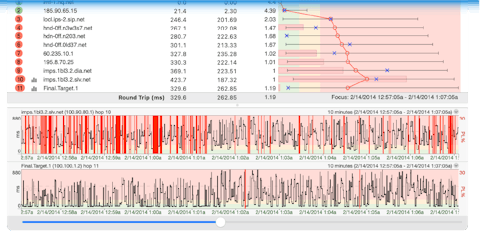
popid_1240665745="<p class=\"p_PopupText\"><span class=\"f_PopupText\">The red line on the graph shows the average response times, in milliseconds (1\/1000ths of a second), for the route. Lost packets are not included in this average.<\/span><\/p>\n\r"
popid_1678601588X="<p class=\"p_PopupText\"><span class=\"f_PopupText\">Any hop number surrounded by brackets (like [12]) means that that hop is being monitored for an alert (see alerts for details on setting up an alert). Multiple alerts can be configured for the same IP, and alerts don\'t work unless some IP in your current route is being monitored (ie: has brackets around it). <\/span><\/p>\n\r"
popid_889557984="<p class=\"p_PopupText\"><span class=\"f_PopupText\">This column shows the individual sample time, in milliseconds (1\/1000ths of a second), of the most recent sample included in the set.&nbsp; If a number is displayed as ERR, that means that the packet was lost - a packet was sent out but was never returned.<\/span><\/p>\n\r"
popid_172640053X="<p class=\"p_PopupText\"><span class=\"f_PopupText\">The blue X on the graph is the graph of the current (or most recent) sample taken.<\/span><\/p>\n\r"
popid_1173371384X="<p class=\"p_PopupText\"><span class=\"f_PopupText\">The upper graph may not be displaying information about all data that is collected.&nbsp; In the example we see here, we\'re zoomed in on 75 samples - and this &quot;focus rectangle&quot; shows exactly which samples this is.&nbsp; To change the focus of what the upper graph is displaying, just double-click the period you want more information about on the lower graph.<\/span><\/p>\n\r<p class=\"p_PopupText\"><span class=\"f_PopupText\">Keep in mind that &quot;Samples to include&quot; is a big variable in this - if you have samples to include set to 0, then it can\'t zoom in any more because 0 means &quot;all&quot;.<\/span><\/p>\n\r"
popid_1425626814="<p class=\"p_PopupText\"><span class=\"f_PopupText\">The PL% Column indicates the percentage of packets lost (number lost divided by the samples to include that have been sent out) <\/span><\/p>\n\r<p class=\"p_PopupText\"><span class=\"f_PopupText\">If you\'re only including the last 10 samples, then only the number of packets lost in the last 10 samples are shown here. If you want to find out packet loss over the entire session, change the &quot;Samples to Include&quot; number to 0 (which includes ALL samples). <\/span><\/p>\n\r<p class=\"p_PopupText\"><span class=\"f_PopupText\">The number of packets lost can be shown by enabling the <\/span><span class=\"f_PopupText\" style=\"font-weight: bold;\">ERR<\/span><span class=\"f_PopupText\"> column by right-clicking the graph. <\/span><\/p>\n\r"
popid_875445113="<p class=\"p_PopupText\"><span class=\"f_PopupText\">The number shown here indicates the graph scale, in milliseconds (1\/1000th of a second).&nbsp; <\/span><\/p>\n\r<p class=\"p_PopupText\"><span class=\"f_PopupText\">If a dynamic scale is being used, then this number is the maximum response time of any of the included sample set.&nbsp; This number can change (and WILL change) as new samples are received.<\/span><\/p>\n\r<p class=\"p_PopupText\"><span class=\"f_PopupText\">If a fixed scale is being used, this number will always equal that scale.&nbsp; You can change to a fixed scale in the options screen.<\/span><\/p>\n\r"
popid_83880255X="<p class=\"p_PopupText\"><span class=\"f_PopupText\">Show the Min\/Max Line.&nbsp; Hide this line to keep the scale of the upper graph in better range.&nbsp; This line can be useful to understand how a specific hop is responding - for example, if hop 8\'s minimum point is significantly greater than hop 7\'s maximum point, then you may need to investigate what\'s happening between hops 7 and 8.&nbsp; It may be distance (ie: speed of light latency), or it may be a problem with one router, or the connection between those routers.<\/span><\/p>\n\r"
popid_813435066X="<p class=\"p_PopupText\"><span class=\"f_PopupText\">Turn on this option to cause PingPlotter Pro to minimize instead of close when the &quot;X&quot; button is hit.<\/span><\/p>\n\r"
popid_1049162678X="<p style=\"margin: 0px 0px 0px 0px;\"><span class=\"f_PopupText\">PingPlotter Pro supports multiple named configurations.&nbsp; As soon as you create a second named configuration (in Edit -&gt; Options), these configuration will be available to you via this dropdown list.&nbsp; At any time, you can switch between these configurations and all settings will be applied to the current target and graph.<\/span><\/p>\n\r"
popid_831779787X="<p class=\"p_PopupText\"><span class=\"f_PopupText\">Select this option to have PingPlotter occasionally check on the PingPlotter servers to see if there\'s a new version available.&nbsp; If there is an update available, the main window status bar will show the update message.&nbsp; Double-clicking on this status bar will launch your web browser to the site where the new version is available.<\/span><\/p>\n\r"
popid_755900318X="<p class=\"p_PopupText\"><span class=\"f_PopupText\">The background of the graph uses colors that don\'t display well unless your video drivers are set for more than 256 color.&nbsp; Turn off this option if you\'re having problems seeing the graph (ie:&nbsp; It has little speckled dots instead of a solid color).<\/span><\/p>\n\r"
popid_1184435195X="<p class=\"p_PopupText\"><span class=\"f_PopupText\">This option can probably be left on all the time - it marks whether or not the red\/yellow\/red is painted onto the background of the HOP column.&nbsp; The colors used should work fine on a 16 color screen, though, so you\'re probably going to be OK leaving it on.&nbsp; If you want a &quot;Copy as Image&quot; to show up without color, turn this off.<\/span><\/p>\n\r"
popid_1988467608="<p class=\"p_PopupText\"><span class=\"f_PopupText\">PingPlotter can be set to automatically create a .PP2 save file at a specified interval.&nbsp; This can be coupled with &quot;Maximum samples to hold in memory&quot; to minimize the amount of memory used on long monitoring projects.&nbsp; The &quot;Save Interval&quot; must have elapsed before the first save happens (this is so short-term tests don’t auto-save data).&nbsp; A suggested number for this is 30 minutes.<\/span><\/p>\n\r<p class=\"p_PopupText\"><span class=\"f_PopupText\">The file name defaults to the current path.&nbsp; <a href=\"variable_substitution.html\">Visit the topic on Variable Substitution for a list of variables<\/a> that can be used.<\/span><\/p>\n\r<p class=\"p_PopupText\"><span class=\"f_PopupText\" style=\"font-weight: bold;\">Make sure your file name will resolve to a valid file name.&nbsp; Remember that a colon (:) should only be used with a drive letter, and the \/ isn’t a valid character.&nbsp; <\/span><\/p>\n\r<p class=\"p_PopupText\"><span class=\"f_PopupText\">A good example of a file name is:&nbsp; \$host \$date \$hour00<\/span><\/p>\n\r<p class=\"p_PopupText\"><span class=\"f_PopupText\">If the file already exists, it will be overwritten.&nbsp; This means you can combine a pretty fast save interval, and couple that with a longer time file name (ie:&nbsp; \$host) and save your data often without creating a lot of extra files.<\/span><\/p>\n\r<p class=\"p_PopupText\"><span class=\"f_PopupText\">Also, if you specify a directory that doesn\'t exist, then PingPlotter will try to create that directory (this is useful if you want to save data about a specific host in a directory that matches that host name - you can use &quot;c:\\ppdata\\\$host\\\$host \$date&quot; (or something similar) for your filename.<\/span><\/p>\n\r<p class=\"p_PopupText\"><span class=\"f_PopupText\">&nbsp;<\/span><\/p>\n\r"
popid_377225539X="<p class=\"p_PopupText\"><span class=\"f_PopupText\">PingPlotter can be set to automatically create an image of the current data (as seen on the graph).&nbsp; Using this, one could auto-save for a time period, then create some kind of &quot;album&quot; to post for proof of a problem.&nbsp; The &quot;Save Interval&quot; must have elapsed before the first save happens (this is so short-term tests don’t automatically create images).&nbsp; <\/span><\/p>\n\r<p class=\"p_PopupText\"><span class=\"f_PopupText\">Note that the image that is saved is the same as the image on the PingPlotter display at the time the period elapses.&nbsp; If you\'ve changed the focus of the PingPlotter display, then the current image saved rather than the current data at the time of save.<\/span><\/p>\n\r<p class=\"p_PopupText\"><span class=\"f_PopupText\"><a href=\"variable_substitution.html\">See the Variable Substitution section<\/a> for file name variables and tips.<\/span><\/p>\n\r"
popid_1014791664X="<p class=\"p_PopupText\"><span class=\"f_PopupText\">Note:&nbsp; This is an advanced option that should probably not be changed.&nbsp; This is used to diagnose network problems when specific *data* is sent - which is a highly unlikely problem for most networks.<\/span><\/p>\n\r<p class=\"p_PopupText\"><span class=\"f_PopupText\">By default, PingPlotter (basically) pads the outgoing packet with repeating string representing the current PingPlotter version and name.&nbsp; An example of this is PingPlotter250, repeated over and over to fill the cargo.&nbsp; If you suspect that your network may be having problems when you send specific byte codes, you can enter the hex code that you want repeated, OR a link to a file to read the byte string from.&nbsp; The cargo space for the packet will be padded with this data.&nbsp; Use this in conjunction with the packet size to create the network scenario you\'re looking to duplicate.<\/span><\/p>\n\r"
popid_577161218X="<p class=\"p_PopupText\"><span class=\"f_PopupText\">Hit this button to have PingPlotter check on the www.nessoft.com servers to see if a new update is available.&nbsp; When the check is done, you’ll see a popup dialog with the results (and possibly pointers to a new version).<\/span><\/p>\n\r"
popid_1371042141X="<p class=\"p_PopupText\"><span class=\"f_PopupText\">These boxes control the point at which the colors change.&nbsp; By default, all response 200 ms and below will paint green.&nbsp; From 201 to 500 will paint yellow, and over 500 will paint red.&nbsp; These numbers apply to both the HOP column and the graph background.&nbsp; In addition, the legend on the graph screen will be updated with these number.<\/span><\/p>\n\r<p class=\"p_PopupText\"><span class=\"f_PopupText\">You\'ll probably want to change the numbers based on your internet connection speed.&nbsp; If you\'ve got a T1 or a cable modem, the listed numbers are probably pretty good (you might move them down a little if you\'re tracing to a fast site).&nbsp; If you have a modem, you probably want to crank these numbers up a bit.<\/span><\/p>\n\r<p class=\"p_PopupText\"><span class=\"f_PopupText\">A reasonable number for a modem would be 350 for Warning and 600 for Critical.&nbsp; You might want to play around a little with these, though.<\/span><\/p>\n\r"
popid_475927148="<p class=\"p_PopupText\"><span class=\"f_PopupText\">The DSCP byte is often used by network providers to determine packet priority and sometimes make other decisions about the data.&nbsp; There may be an occasion where you want to manipulate this byte and test network performance.&nbsp; VoIP data, for example, is often characterized by a value in the DSCP byte.<\/span><\/p>\n\r<p class=\"p_PopupText\"><span class=\"f_PopupText\">This byte can be edited as Decimal, Hex, or Binary by hitting the button beside the edit field.&nbsp; The display on the button shows the current format this value is displayed in.<\/span><\/p>\n\r<p class=\"p_PopupText\"><span class=\"f_PopupText\">Note that under Windows XP and newer operating systems, a registry setting needs to be modified to allow this byte to be used.&nbsp; This is a system-wide setting that allows applications to write their own values into this byte.&nbsp; If your system needs to have this value set, PingPlotter will prompt to see if you want this setting changed (and a reboot will be required) as soon as you modify the value in this field.<\/span><\/p>\n\r"
popid_1135650694="<p class=\"p_PopupText\"><span class=\"f_PopupText\">This can be an interesting number to manipulate.&nbsp; It\'s really meant for &quot;advanced&quot; users, so you don\'t NEED to change it.<\/span><\/p>\n\r<p class=\"p_PopupText\"><span class=\"f_PopupText\">PingPlotter sends out multiple packets at the same time and times everything at once.&nbsp; Actually, it leaves a tiny interval between each packet so as not to completely saturate your bandwidth when it sends out 30 packets.&nbsp; This time interval is adjusted by this parameter.&nbsp; Most of the time, 25ms is good.&nbsp; This falls within realm of what a 28.8 modem can perform.&nbsp; If you\'ve adjusted your packet size, or your connection to the internet is really slow, you might want to crank this number up a little.&nbsp; If you have just oodles of bandwidth, you can crank it down a little.&nbsp; Be aware that a too-small number can adversely affect your data.<\/span><\/p>\n\r"
popid_536004278="<p class=\"p_PopupText\"><span class=\"f_PopupText\">The jitter graph scale controls the range of jitters you expect, and at what point the jitter will go off-scale.&nbsp; Normally, a jitter of much over 60 ms is indicative of a problem, so 60 is a good starting point.&nbsp; Any values over the scale will show with a red line for &quot;overscale&quot;.<\/span><\/p>\n\r<p class=\"p_PopupText\"><span class=\"f_PopupText\">This graph scale is used in tandem with a &quot;target line&quot; which will be drawn across the graph at the point you specify.&nbsp; This is used to easily identify if jitter is exceeding your target number.<\/span><\/p>\n\r"
popid_2110835533X="<p class=\"p_PopupText\"><span class=\"f_PopupText\">This is the maximum number of samples that will be held in memory at any one time.&nbsp; Older samples are purged from memory.&nbsp; This can be coupled with auto-saving of data to keep your memory images small, but still have access to all the data collected.<\/span><\/p>\n\r<p class=\"p_PopupText\"><span class=\"f_PopupText\">PingPlotter averages about 44 bytes per sample (this can be more or less, but this is the memory for a 20 hop route), so 20,000 samples is still less than 1 megabyte of memory.<\/span><\/p>\n\r"
popid_1049786319X="<p class=\"p_PopupText\"><span class=\"f_PopupText\">PingPlotter sends multiple requests simultaneously, but we need to put a limit on it so we’re not queuing more packets than we can send.&nbsp; Set this to 1 to only have one request out there at once.&nbsp; For ICMP types, this is concurrent *threads*.&nbsp; For UDP and TCP (which share a single thread for all packets), this is requests.<\/span><\/p>\n\r"
popid_633539528X="<p class=\"p_PopupText\"><span class=\"f_PopupText\">NT 3.51 in particular doesn\'t like to have multiple IP addresses resolved into names at the same time.&nbsp; NT 4.0 and Windows 95\/98 work fine with this check mark turned off.&nbsp; Performance is best with this turned off.&nbsp; <\/span><\/p>\n\r<p class=\"p_PopupText\"><span class=\"f_PopupText\">When this switch is on, PingPlotter will still uses multiple threads to do tracing, but the looking up of names is done one at a time.&nbsp; When installing onto a machine running NT 3.51, this option is turned on by default.<\/span><\/p>\n\r<p class=\"p_PopupText\"><span class=\"f_PopupText\">A symptom of having this switch off under NT 3.51 is that PingPlotter stays in memory - even after you close PingPlotter.&nbsp; When you close Windows NT, it notifies you that PingPlotter is still running.&nbsp; If you run into this problem, turn this switch on.<\/span><\/p>\n\r"
popid_1000715769="<p class=\"p_PopupText\"><span class=\"f_PopupText\">This adjusts the size of the packet that PingPlotter sends out to the host.&nbsp; Sometimes routers in the path can be adversely affected by packet size.&nbsp; You can play with the packet size if you suspect that one of the routers is incorrectly configured or is likely to cause problems with larger (or smaller) packets.<\/span><\/p>\n\r<p class=\"p_PopupText\"><span class=\"f_PopupText\">Having this number too high will HUGELY affect your performance.&nbsp; It\'s best to leave this pretty small.&nbsp; Valid ranges are from 28-512 bytes.&nbsp; Actually, anything up to 32K will be accepted, but using a packet size over 512 bytes is just asking for trouble (fragmentation, and other problems).&nbsp; Keep this number relatively small unless you know that you need a bigger number..<\/span><\/p>\n\r<p class=\"p_PopupText\"><span class=\"f_PopupText\">Note that setting this too high can cause the FINAL hop in the trace to appear to be responding poorly.&nbsp; This is because all hops before the final one are timing out and returning a small &quot;Timeout&quot; packet, but the final destination will be returning the full data that was sent.&nbsp; Keep this number small for the most consistent response times.<\/span><\/p>\n\r<p class=\"p_PopupText\"><span class=\"f_PopupText\">The size set here includes the header bytes, so this is the total packet size.&nbsp; In versions of PingPlotter before 2.50, this was actually the cargo size, so with 2.50, the default packet size is actually 28 bytes less than it was in previous versions (using the same number).&nbsp; A 56 byte setting here actually creates a 56 byte packet - 28 bytes of header and 28 bytes of &quot;cargo&quot;.<\/span><\/p>\n\r"
popid_879677750="<p class=\"p_PopupText\"><span class=\"f_PopupText\">If you access the internet through a proxy server, you can set up this server here.&nbsp; In the current version of PingPlotter, this is not <\/span><span class=\"f_PopupText\" style=\"font-weight: bold;\">required<\/span><span class=\"f_PopupText\">, although automatic version checking doesn\'t work if PingPlotter can\'t access the internet via HTTP.<\/span><\/p>\n\r"
popid_90292516="<p class=\"p_PopupText\"><span class=\"f_PopupText\">PingPlotter can be minimized to the &quot;tool tray&quot;, the small icon &quot;tray&quot; where the clock normally sits, and where a number of other notification icons might appear.<\/span><\/p>\n\r"
popid_959963062X="<p class=\"p_PopupText\"><span class=\"f_PopupText\">By default, PingPlotter will automatically adjust the scale of the graphs to fit the data you\'re collection.&nbsp; Sometimes, if one of the hops in your trace has really bad performance, this can cause the graph to become almost unreadable.&nbsp; If this happens, you can fix the scale of the graph so it doesn\'t change.&nbsp; Both the trace graph - and the time-line graph are fixed by this number when set.<\/span><\/p>\n\r"
popid_325381818="<p>When <span class=\"f_PopupText\">PingPlotter Pro<\/span> starts as a service, you probably want a list of targets to start as well.&nbsp; This points to a workspace with all targets included.&nbsp; Note that this *should* be an absolute path.<\/p>\n\r"
popid_959539149X="<p class=\"p_PopupText\"><span class=\"f_PopupText\">To watch &quot;trending&quot;, it\'s sometimes nice to see what the most recent sample is.&nbsp; This option will enable that.&nbsp; A little blue X will be drawn on the graph that represents the most recent sample.&nbsp; You might want to turn this off when submitting a picture to an ISP so as not to confuse them or add anything they can question.<\/span><\/p>\n\r"
popid_1558541392="<p class=\"p_PopupText\"><span class=\"f_PopupText\">Can save a bit of resources when the first hop never responds (which is entirely normal), or can mask the first few IP Addresses in some cases where this is appropriate.<\/span><\/p>\n\r"
popid_1676351727="<p class=\"p_PopupText\"><span class=\"f_PopupText\">TCP Port setting allows you to specify the target port for the TCP packet.&nbsp; One of the most popular and useful ports is HTTP - port 80.&nbsp; Other handy ports are for FTP (21) and DNS (53).&nbsp; You can also specify any port, as needed.<\/span><\/p>\n\r"
popid_861830158="<p class=\"p_PopupText\"><span class=\"f_PopupText\">Windows XP SP2 introduced a number of new &quot;security&quot; related changes, and one of these changes blocked our ability to create raw TCP packets (which is necessary for TCP trace route \/ PingPlotter).&nbsp; To work around this, we’re using the WinPCap library, an open source network driver.&nbsp; See our web page for more details at http:\/\/www.pingplotter.com\/winpcap.html.<\/span><\/p>\n\r"
popid_1313892598="<p class=\"p_PopupText\"><span class=\"f_PopupText\">This option allows you to fine-tune your performance a little.&nbsp; By default, PingPlotter will wait for 10 seconds for any packet to return.&nbsp; If the packet doesn\'t return in 10 seconds, then it is counted as a lost packet.&nbsp; If patience isn\'t one of your virtues, you can turn this down somewhat.&nbsp; No matter what your value is here, timed out packet will show with the time &quot;9999&quot;.<\/span><\/p>\n\r<p class=\"p_PopupText\"><span class=\"f_PopupText\">Because of the performance enhancements offered by PingPlotter, it\'s unlikely that this option needs to be changed.&nbsp; If it\'s set too low, it can cause misleading data to be generated.&nbsp; For best results, leave this at 9999.<\/span><\/p>\n\r"
popid_618356556X="<p class=\"p_PopupText\"><span class=\"f_PopupText\">Show\/Hide the packet loss percentage in the upper and lower graphs.<\/span><\/p>\n\r"
popid_1895081188="<p class=\"p_PopupText\"><span class=\"f_PopupText\">The red number on the right of the timeline graph is the scale of the packet loss numbers.&nbsp; Depending on the number of samples included in the timeline graph, all timeouts may show 100%.&nbsp; For more details, <a href=\"javascript:void(0);\" onclick=\"return hmshowPopup(event, popid_738366870X, true);\" class=\"popuplink\">click here<\/a>.<\/span><\/p>\n\r"
popid_1021298318X="<p class=\"p_PopupText\"><span class=\"f_PopupText\">If there are 75 or more unsaved samples in memory when PingPlotter is closed, do you want to be reminded to save your data?<\/span><\/p>\n\r"
popid_2101257087="<p class=\"p_PopupText\"><span class=\"f_PopupText\">When the word &quot;Querying&quot; is displayed here, PingPlotter is waiting on the internet for something - either a trace packet to return or a name lookup to return.&nbsp; When nothing is displayed here, PingPlotter is just waiting for you to hit &quot;Trace&quot; or &quot;Resume&quot; - or it\'s waiting for the specified time interval to elapse so it can get its next sample.<\/span><\/p>\n\r"
popid_333559726="<p class=\"p_PopupText\"><span class=\"f_PopupText\">The round trip line is optional (it can be removed from the &quot;View&quot; Menu).&nbsp; This shows exactly the same as the last server in the chain, but it\'s sometimes nice to have this number re-announced for ease of reading.&nbsp; This line shows the time it takes to get from your computer to the destination server and back again.<\/span><\/p>\n\r"
popid_888129676="<p class=\"p_PopupText\"><span class=\"f_PopupText\">The &quot;Route Change&quot; pane is used to show the history of route changes.&nbsp; Any time any hop in the route changes, PingPlotter stores the old and new route data and adds the time of the change to this list box.&nbsp; Double-clicking on any time will show the route as of that time.&nbsp; This is the starting time for the change.<\/span><\/p>\n\r<p class=\"p_PopupText\"><span class=\"f_PopupText\">Double-clicking on the time-line graph will refocus the upper graph on the period you double-clicked on the lower time-line graph.&nbsp; The route window will also follow this - to show the route that was current at the time you selected.<\/span><\/p>\n\r<p class=\"p_PopupText\"><span class=\"f_PopupText\">If your route regularly changes, you may want to add a route change mask to exclude normal changes from the route change log.&nbsp; This is particularly true if the route change is limited to a single oscillating router - that is changing between two similar IP addresses constantly.<\/span><\/p>\n\r<p class=\"p_PopupText\"><span class=\"f_PopupText\">The easiest way to add a route change mask (or combine data from multiple routers at the same hop) is to select the routes that have an oscillating router in the &quot;Route Changes&quot; window.&nbsp; The trace graph will highlight hops that are different between the selected routes.&nbsp; You can right-click on any of these hops and &quot;<\/span><span class=\"f_OptionDescription\">Add Route Change Mask&quot;.&nbsp; This will combine the data *and* add a route mask to the mask exclusion list.<\/span><\/p>\n\r<p class=\"p_PopupText\"><span class=\"f_OptionDescription\">You can also add a Route Change Mask in Edit-&gt;Options and then choosing the &quot;Route Changes&quot; option for the configuration that you\'re using for that target.<\/span><\/p>\n\r"
popid_1292182947X="<p class=\"p_PopupText\"><span class=\"f_PopupText\" style=\"font-size: 11pt; font-weight: bold;\">It’s somewhat important to understand how &quot;Samples to Include&quot; works.<\/span><\/p>\n\r<p class=\"p_PopupText\"><span class=\"f_PopupText\">When running a trace, PingPlotter can look at just the most current samples.&nbsp; This is great to watch &quot;trending&quot; (where the response changes over time).&nbsp; If you include ALL samples (type 0 in this field), then after a large number of samples, new samples don\'t affect the graph very much.&nbsp; Setting this to something like 10 allows you to see how the response times are right now.&nbsp; All numbers in the trace (upper) graph are affected by this.&nbsp; When zooming in on the timeline graph, it’s important to not have this set to &quot;ALL&quot;.<\/span><\/p>\n\r<p class=\"p_PopupText\"><span class=\"f_PopupText\">You can also enter a time here (ie: 30 minutes) and PingPlotter will convert that to a sample count that matches that time period.&nbsp; This is point-in-time - scrolling to a period of time with a different trace interval won’t change the number.<\/span><\/p>\n\r"
popid_2017808406X="<p class=\"p_PopupText\"><span class=\"f_PopupText\">The time under the graph shows what time these samples were taken.&nbsp; If you have more samples than can be displayed on the graph, you can either change the scale (by right-clicking the graph) or scroll the graph (by clicking on the graph and then dragging left or right).<\/span><\/p>\n\r"
popid_738366870X="<p class=\"p_PopupText\"><span class=\"f_PopupText\">A red line in the time-line graph indicates a timeout in this time period. You move the focus of the upper graph to this time by double-clicking it - to find out where the timeout first occurred (in the upper graph). <\/span><\/p>\n\r<p class=\"p_PopupText\"><span class=\"f_PopupText\">The height of the red line indicates the percentage of packet loss in the time period being represented by the pixel.&nbsp; Keep in mind that based on the number of samples you collect and the scale of the lower graph you\'re showing, all timeouts may show up as 100%, or there may be multiple samples in any pixel.<\/span><\/p>\n\r<p class=\"p_PopupText\"><span class=\"f_PopupText\">If you\'re doing a trace every 10 seconds, and you\'re showing 10 minutes of samples, this is only 60 samples - and any one sample is going to take multiple pixels to display.&nbsp; On the other hand, if you\'re doing that same thing and showing 48 hours, that\'s 17280 samples - and some averaging of samples needs to be done to display all the data.&nbsp; This is where the packet loss percentage really makes sense in the lower graph.&nbsp; In this case, you\'re probably going to have about 35 samples being averaged in any one pixel width, so the line height of the latency is going to be an average number, and the packet loss is going to be a percentage - based on how many failed and how many succeeded.&nbsp; If there were no successful samples in a pixel width, then there will be no black line showing the latency, but instead a full-height red line to show 100% packet loss.<\/span><\/p>\n\r"
popid_1724804000X="<p class=\"p_PopupText\"><span class=\"f_PopupText\">The timeline graph scale shown on the left of the graph is controlled by the scale in Options, or, if this is set to automatic, this is the highest latency in the graph.&nbsp; Please note that the latencies in the lower graph can be average latencies - when more than one sample is displayed in a pixel.&nbsp; See the <a href=\"javascript:void(0);\" onclick=\"return hmshowPopup(event, popid_738366870X, true);\" class=\"popuplink\">information about packet loss lines<\/a> for more details.<\/span><\/p>\n\r"
popid_1562375801="<p class=\"p_PopupText\"><span class=\"f_PopupText\">The Trace Interval is the amount of time PingPlotter will wait between each sample set.&nbsp; If you\'re doing a long term monitoring project, you may want to set this to 1 minute (or more).&nbsp; If you\'re just doing a quick set, you might want to set this to something lower (5 seconds or 10 seconds).&nbsp; If the up\/down arrow doesn\'t have the amount of time you want, just type in the time interval you want (e.g. 3.5 seconds).<\/span><\/p>\n\r"
popid_1037303094="<p class=\"p_PopupText\"><span class=\"f_PopupText\">This shows how many samples PingPlotter has in memory currently.&nbsp; Please note that some data may be dropped from memory - if PingPlotter is configured to drop data from memory after it reaches a certain sample count.<\/span><\/p>\n\r<p class=\"p_PopupText\"><span class=\"f_PopupText\">PingPlotter can keep a substantial amount of data in memory.&nbsp; See the option for &quot;<a href=\"javascript:void(0);\" onclick=\"return hmshowPopup(event, popid_2110835533X, true);\" class=\"popuplink\">Maximum Samples to hold in memory<\/a>&quot; for more details on this.<\/span><\/p>\n\r"
popid_1943377263="<p class=\"p_PopupText\"><span class=\"f_PopupText\">The &quot;# of times to trace&quot; allows you to stop tracing after a certain number of traces.&nbsp; If you\'re only interested in a set trace count, you can save some bandwidth usage by not allowing PingPlotter to trace forever.<\/span><\/p>\n\r"
popid_1779138173X="<p class=\"p_PopupText\"><span class=\"f_PopupText\">Any hop that is underlined means that it\'s being traced on a time-line graph (in the bottom portion). The underline makes it easy to find the hops that should be de-selected to remove their lower time-line graphs.&nbsp; Double-clicking on a hop in the upper graph will show (or hide, if it\'s already showing) that graph in the lower time-graph region.<\/span><\/p>\n\r"
popid_233413038X="<p class=\"p_PopupText\"><span class=\"f_PopupText\">The black line on the graph indicates the range of times received.&nbsp; The leftmost side of the line is the minimum response time - the rightmost being the maximum response time.<\/span><\/p>\n\r<p class=\"p_PopupText\"><span class=\"f_PopupText\">This is great for showing clear network bottlenecks. If the <\/span><span class=\"f_PopupText\" style=\"font-weight: bold;\">best<\/span><span class=\"f_PopupText\"> response time of a hop is higher than the worst of the previous hop, you\'re pretty sure there\'s some problem between these two hops. <\/span><\/p>\n\r"
popid_2088252009X="<p class=\"p_PopupText\"><span class=\"f_PopupText\">The &quot;IP Block Lookups&quot; address is the WHOIS server to query for IP block lookups.&nbsp; This will look up who owns a particular IP address.&nbsp; The default for this is whois.arin.net.<\/span><\/p>\n\r"
popid_74737676X="<p class=\"p_PopupText\"><span class=\"f_PopupText\">The &quot;Standard Lookups&quot; address is the WHOIS server to query for named lookups.&nbsp; The default value is whois.crsnic.net.&nbsp; This whois server is a central area which doesn\'t actually give whois information directly, instead it tells us which domain registrar handles the selected domain.&nbsp; PingPlotter then uses this information to go to the registrar and do a whois lookup again.&nbsp; Note that whois.networksolutions.com is another whois server that works - and will tell which registrar is responsible for a domain in most cases.<\/span><\/p>\n\r"
popid_2001873891X="<p class=\"p_PopupText\"><span class=\"f_PopupText\">If you regularly trace to a lot of targets (and have them auto-show on the summary screen), turn this option off to control visibility manually.<\/span><\/p>\n\r"
popid_530549034="<p class=\"p_PopupText\"><span class=\"f_PopupText\">This is on by default, but can be turned off if you want to manually add your own targets to the summary screen, rather than have PingPlotter automatically add them for you.<\/span><\/p>\n\r"
popid_1311472594="<p class=\"p_PopupText\"><span class=\"f_PopupText\">Enabling this option will save the workspace when the service is stopped.&nbsp; You can manually do this same action whenever you want via the &quot;Workspace&quot; -&gt; &quot;Save Workspace&quot; menu.<\/span><\/p>\n\r"
popid_467805719="<p class=\"p_PopupText\"><span class=\"f_PopupText\">Enable this option if you want to resume tracing automatically when you stop and then restart the PingPlotter Pro service.&nbsp; Disabling this will mean you\'ll collect new data (all old history will not be reloaded) when you stop and the restart the service.<\/span><\/p>\n\r"
popid_1660892092X="<p class=\"p_PopupText\"><span class=\"f_PopupText\">All service data files (used for resuming the trace) are stored in this directory.&nbsp; It\'s important that this directory is readable and writeable by the &quot;System&quot; user, so it should be on the local machine.&nbsp; When running as a service, all auto-saved data files will be copied into this directory.<\/span><\/p>\n\r<p class=\"p_PopupText\"><span class=\"f_PopupText\">For best results, use an absolute file path here (example: c:\\ppdata\\service files).<\/span><\/p>\n\r"
popid_2080570074X="<p>If you\'re tracing using multiple named settings to the same target, this option should be enabled to allow easy identification of which graph is using which settings.&nbsp; This is especially important if you\'re using a remote engine - so you can differentiate the source of the packets.<\/p>\n\r"
