
![]() |
|
![]() |
PingPlotter Pro v3.x release notesPingPlotter Pro V3.00.2 - January 4th, 2006The 3.00.1 and 3.00.2 releases were bug fixes. Download 3.00.2 from http://www.pingplotter.com/download.html. 3.00.2 changes:
And ... the 3.00.1 changes (released December 15th, 2005):
PingPlotter Pro V3.00 - December 11th, 2005Overview of differences between the current licensed 2.60 release and this Pro version:
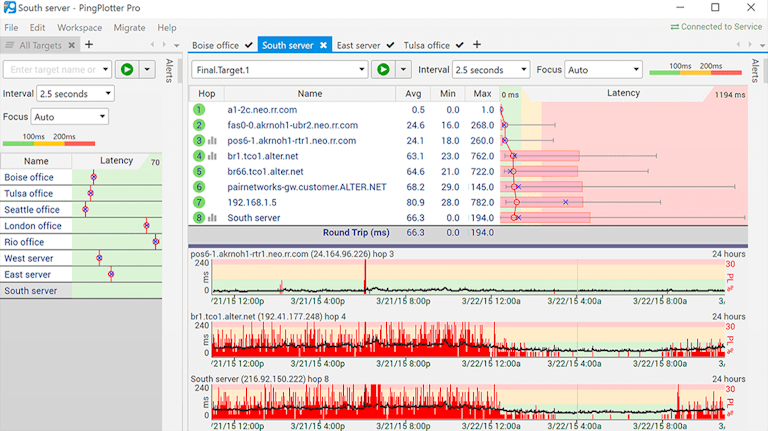
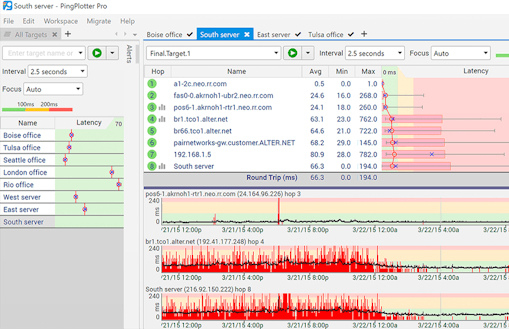
Details of new features, including basic instructions on useThis sections talks about each of the new features in a bit more depth. Make sure you also review the PingPlotter Pro help file that is installed with the product. It has quite a bit of additional information. InstallationInstallation should be relatively easy - and similar to previous PingPlotter releases. Once installed, a new entry for "PingPlotter Pro" will be added to your start menu. Note that this is installed completely independent of PingPlotter v2.60 - both can be installed at the same time. Multiple targets in a single instanceThis is probably one of the most asked for features we’ve received from current PingPlotter users. You can now trace to more than one target at a time within one PingPlotter instance, and each target can be managed independently of the others (unlike in MultiPing, where each target's schedule, packet size and other settings are all shared). To use this capability, enter your first target's name or IP address and hit either the "Trace" button or the enter key. If you're a prior user of PingPlotter, this will be familiar. Now, to add an additional target, either use the "File" -> "New Target" menu option, or hit the little icon next to the "Address to trace" line. If these entries are disabled, that means PingPlotter's ready for you to enter a new target address in "Address to trace:" and get started. Multiple targets will show up as tabs. In addition, each target will be listed as a menu entry in the "Workspace" menu to make it easy to select. All menus and controls are connected to the currently selected target. Switching between targets will switch the controls to that target. To close a target, just hit the "X" (i.e.: Close) button above the graph on the right next to the thumbtack. This will stop data collection and get rid of all collected data from memory. We have done relatively extensive testing at 10 different targets. We've done quite a bit of work at 80 targets, and we've done light testing at 250 targets. The tab paradigm starts to show problems as the number of targets increases to over 40 or so. Your comments and suggestions are welcome here if you expect to monitor a lot of targets. Remember that we're doing full route traces for each target - different than with MultiPing where it's final destination pinging only. One primary reason to use PingPlotter Pro to monitor multiple targets, rather than just using multiple instances of PingPlotter workstation, is that PingPlotter Pro can make sure multiple targets don't all get queried at the same time. We always want a bit of time between each packet so we don't overwhelm the local connection and impact our measurements by sending too much data. PingPlotter Pro makes sure time spacing is honored between each packet - no matter how many targets are being monitored. Summary ScreenAs you add new targets, each final destination will automatically be added to the "Summary" screen. The summary screen should look familiar to those of you who've used MultiPing in the past. Because each target might be running different trace intervals, the summary screen has no "Samples to include" setting, but instead has "Graph focus time". This focus period is applied against all hosts listed on the summary screen - even if they have different data collection intervals. The summary screen, by default, shows all final targets. You can, however, manually add any intermediate hops from any target to also appear on the summary screen. To do this, right-click on the hop (host) you want shown and select "Show on summary screen". From the summary screen, you can switch to the trace graph by right-clicking on a host and selecting the menu option "Show trace graph". Changing settings for some targetsYou might want to collect data on targets that respond to different types of packets, or you might want to collect data about the same target with different settings. PingPlotter Pro allows you to do this by introducing the concept of named configurations. By default, when you install PingPlotter Pro it has one configuration called "Default Settings" (that might be poorly named as you configure more, but works great with a single configuration). To access this, enter the options dialog (Edit -> Options). You'll see the "Default Settings" section on the left. If you right-click that (Default Settings), you'll get menu options to "Copy Configuration" and "New Configuration". Selecting "New Configuration" will use the default settings.Some example configuration names are: Once you've created a new configuration and closed the options dialog, you'll notice a new drop-down below the "Address to trace:" field. This contains a list of all configurations. If you only have a single configuration, there's no need to display that dropdown so it’ll be hidden. You can change the settings a target is associated with at any time, just by switching it in that dropdown - even when that trace is running. Note that the Summary Screen will always use the display settings from the first configuration in the list. Changing settings for a configuration will apply those changes across all targets that are using that named configuration. Support for docking and moving of targetsBy default, each target shows as its own tab. That works, but might not be exactly what you're after. Maybe you want 10 targets all displayed filling your high resolution "war room" screen. You can certainly do this. Each target is living in its own "dock" control. Just grab a tab and drag it away from the PingPlotter main application. If you drop it someplace else on your screen, you'll now have a "stand-alone" display for that target. You can also dock a target on the side of the PingPlotter window so you can have side-by-side (or above / below) display in the PingPlotter main program instance. There are a number of combinations here. One of our favorite setups with 5 to 10 targets is to dock the trace graphs to the side, and then set them to auto-hide (this is done by hitting the push-pin button at the right side of the caption). If you leave the summary screen visible in the center and auto-hide the targets on one (or more!) sides, you can easily access them by floating your mouse over, by selecting that target from the "Workspace" menu or right-clicking on that summary graph and selecting “Show Trace Graph” There are a lot of possibilities here, so let us know what you come up with! Save targets, settings, layoutsOnce you get a set of targets that you normally monitor, you probably want to save your configuration so you can reload it later. PingPlotter Pro calls this a "Workspace", and allows to you to a workspace. When you save your workspace, it saves your layout, all targets you're monitoring, your setting affiliations and a number of other values (like trace interval, graph height, etc.) Run as a Windows ServiceIf you normally monitor the same set of targets and you *always* want to monitor them (and possibly alert on them), you might want to set up PingPlotter Pro to run as a Windows service (under Windows 2000, XP and 2003 only - not Windows 9x). Once you've done this, PingPlotter will start running when you boot your machine and will keep running - even if you log in as a user and then log out. To set up PingPlotter to run as a service, the easiest way to do this is via the Options dialog. Go to the "Windows Service" portion and hit the "Install Service" button. This will create a service entry pointing at PingPlotter. You'll also need to create a Workspace so PingPlotter knows what targets, settings and trace intervals to use. Get everything set up, save a Workspace and then go to the Windows Service setup screen and set the "Workspace to load" that workspace. You should also set the "Save File Location", which should be writeable to by the service account on your computer. This is where data files are saved to on shutdown, and reloaded from when you restart the computer. Also, if you have "Auto-Save" set up for any of the targets, every time the data is saved the service history is also updated so a crashed computer will only lose data since the last auto-save. To start the service, use the standard Windows methods (i.e.: Control Panel, Administrative Tools, Services), or you can issue the following command from a command prompt: net start PingPlotter Web ServerHave you ever been collecting data on a PC and wanted to look at the results from another PC - possibly across the company, or even across the country? PingPlotter Pro now includes a built-in stand-alone web server to allow you to see graphs and data that is being collected. The current web interface does not expose all PingPlotter functionality, but it does allow you to look at graphs, manipulate focus periods, timegraph ranges and other settings. It also allows you to download collected data files in PingPlotter’s .pp2 format for closer examination. To configure the web server, go to Edit -> Options, and then into the "Web Server" section. The web server is disabled by default, so you’ll need to turn it on there also. The default port for PingPlotter's web server is 7464 (on a phone, this would be the letters PING in case you have a hard time remembering the port). From your local machine you can use http://localhost:7464 to check out the web server. If you're interested in modifying some of the behavior of the web interface (or the look / feel, etc.), the html is all generated from scripts included in the www directory in the folder where PingPlotter is installed. The scripts are asp-style, but the variables available and some of the capabilities are not exactly the same as an IIS based ASP system Integrated Scripting EngineIn an effort to make PingPlotter more flexible, we've tightly integrate with the Windows Scripting Host. This means that there are numerous areas in PingPlotter where you can run your own code to do special things, or change the behavior of default PingPlotter. Here are areas where scripts can be used to extend PingPlotter:
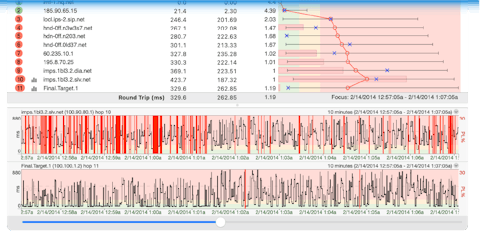
Feel free to use and modify any of the example scripts to create your own versions of them. The "scripts" directory in the PingPlotter Pro install directory has a number of examples. PingPlotter's current scripts are using VBScript, but you can also use JScript, Perl, Python and others. If you want to extend PingPlotter and take advantage of some of these scripts, look in the "scripts" directory of your install folder. The object model is currently undocumented, but please contact us with your needs/wishes and we'll help with your customizing. "Agent" Perl script can be installed on a separate computer and that computer can be used as source of trace.Have you ever wished you could collect data with PingPlotter from a machine that wasn't capable of running PingPlotter, like a hosted web server? There is now a new engine type that will use a script to collect data. Our first example of this engine type (shipped with the current install) is to access a web-based traceroute page. We have a bit of Perl code that runs traceroute on a server and returns the results to PingPlotter. This means you can have your web server with a small script and PingPlotter can access that to collect data. Because the PingPlotter collection mechanism is script-based, you can actually modify the parsing routine to parse any web page output (and submit any variables to that page). This means if you already have a traceroute page on your server, you can probably use that by just modifying the PingPlotter script. If you're interested in this, please contact us and we'll help you get this set up. We did not ship a generic parser that can parse any of the existing pages already out there because of the possibility for abuse. Your thoughts on this are welcome. For more instructions on this, visit our page on configuring remote agents. Mouse wheel scrollingThe zooming and scrolling capability of PingPlotter has always been a bit of a differentiator - to be able to massage the picture of the data to best represent the problem. We've enhanced that a bit by adding support for mouse-wheel zooming and scrolling. If you select (left-click) a time graph, then the mouse wheel will scroll that left or right (if there's enough data there). CTRL-scrolling (or wheel-click scrolling if your wheel has a button on it) will change the graph scale. A unique thing about mouse-based zooming is that you can point at the area you want to zoom in on, and PingPlotter will focus that area. That means you can scroll through a dataset at 24 or 48 hour timing, point at a lost packet or latency period, and then zoom in on it. The old method of double-clicking to get the "focus" set, and then zooming in with the right-click menu still works, but the mouse wheel makes this a lot smoother and more fluid. Improved "focus" indicator on the time graphsMost of you know that the upper PingPlotter graph can focus on a period that's not the current one - giving you the capability to examine any collected data in memory for problems. You do this by setting "Samples to include" to a non-0 number (i.e.: 100), and then double-clicking the time graph to move the focus. When you do this, the time graph shows a "focus indicator". In previous versions of PingPlotter, this was a pair of light colored lines, one on each side of the focus period. With this release, we've made that a lot more obvious by using a stronger color and also adding that color around the entire focus period. Ability to attach a file or image to a new email automatically (ie: File -> Send Email).A common scenario for PingPlotter is to collect data and find a problem, and then you want to email that data to someone. PingPlotter now uses your standard MAPI email client, and creates that email for you with an attachment. We need some help testing how well this works on a wide variety of installs, so please check out this capability. Note that this does not work for instances of PingPlotter running as a service. New "Jitter" calculations and graphsVoice over IP is becoming a bigger part of the networking world, and troubleshooting VoIP is an area where PingPlotter can add a lot of value. Jitter is a metric that shows how much the latency is changing from sample to sample. High Jitter is an indication of network problems, and is a significant cause of VoIP problems. PingPlotter has two ways of displaying Jitter. First, Jitter is displayable on the upper time graph (right click, "Customize View" or View->Customize View, then select "Jitter"). It is also displayable over time on the time graph (grab the splitter bar above the time graph and increase the size of the time graph to see the default Jitter display. If you want to change the way this looks, go to Edit -> Options, Display). Note that the current timeline graph Jitter display is a prototype. We're not sure this adds a lot of value. Your comments are welcome on this. The jitter in the upper trace graph is the average jitter over the number of samples you have selected. If you set "Samples to include" to 0, this will be the average jitter for your entire sample set. Miscellaneous other UI changesWe've made a number of other "tweaks" to the user interface, including (but not limited) these:
|