

| I've
got Ping Plotter installed. Now what do I do? I don't have a clue how to
get started. |
Ideally
you'd go from start to finish through our online tutorial.
If you're in a hurry, the Interpreting
Results section is probably a good place to start. Again, the preferred
way to get started is to peruse the tutorial. It is arranged logically
and there are lots of little tidbits and not-so-obvious
features in there.
|
| Back
to Top |
| Why
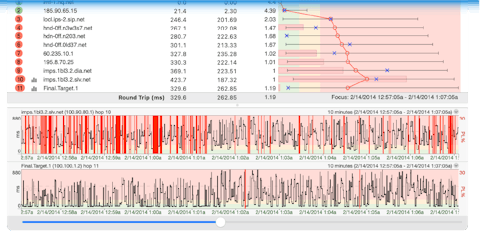
do I sometimes see blank lines in the graph display? There's a hop number
but no IP address, etc. listed. |
The absence
of an IP address for a specific hop means that no router has responded
for that hop. This happens on occasion when a router is configured to
not respond to TTL=0 ICMP echo requests. This is not common, but does
happen occasionally. Another possibility is that the router is configured
to "down-prioritize" TTL=0 ICMP echo requests - in which case
any load might be prioritized higher - and these packets are discarded.
When this happens, you'll sometimes see a hop respond, but sometimes
it doesn't, leading to a high packet loss rate.
The really important point to know about these routers is that if they
are not affecting the downstream hops, then their behavior should be
considered "normal". For example, if you're seeing 75% packet
loss at hop 6, but 0% packet loss at hop 7, but 10% packet loss at hop
8 (the final destination), then the problem isn't at hop 6 at all, but
somewhere else (for example, between hop 7 and hop 8).
Something
to note here is that the moment a router *does* respond on that hop,
Ping Plotter will record that information, so whenever you have a blank
line, that means that no router has responded at all.
Another
possibility is that there is a configuration on the router at that hop
where under heavy loads it drops timed out echo replies. The important
thing to remember is that what really matters is the final destination.
If the final hop is showing 0% packet loss and acceptable latency, then
all the hops before that can barf or just not even respond. Point being
that you can't blame the machine at the final hop and there probably
isn't anything seriously wrong with the route.
|
| Back
to Top |
| Do
you know of any sites that will do a traceroute back to me, as opposed to
me initiating the traceroute from my location? |
One of the best sites is at traceroute.org. There's also a good list at traceroute-gateways.com.
|
| Back
to Top |
| When
I export to a text file, some lines end with * - which seems to mean no
response. I also get a few that end with N/A. What does that mean? |
Because
of the limitations of text files (and the tools you're probably trying
to import this data into - like Excel), only a single route is listed,
and then the data is all printed with respect to that route. Sometimes,
this means that there are routers in the collected data that aren't
in the route you had selected when you export. Usually, the best way
to do an export is to set up your graphs so it's focused in on the period
you're interested in exporting - and then making sure that you have
the right route selected for that (version 2.30.1 helps you do this
by automatically selecting the most current route for the time period
you have selected). Even then, though, only a single route can be used
in an export, so if you have a bunch of routes in your data, the export
will exclude some of this data.
Now, if
you really don't care about route changes, but really care only about
your final destination (you're planning to do an export) there are ways
to get rid of the N/As and to combine data collected by multiple routers
(at a particular hop) into a set of data that can be exported. This
is done by setting
up Ping Plotter to ignore some of the internal route changes. You
can either do this for specific router groups, or just say you don't
care about anything except for the most major (i.e. changing lengths)
route changes by putting an "ALL" in for the exclusion list.
Another
opportunity for N/As to show up is when you're snap a "Copy as
Text" when you're still in the midst of a trace. There might be
some outstanding requests out there that just haven't had an opportunity
to respond yet. Because we don't know yet. They're not time-outs, so
we show that as N/A.
|
| Back
to Top |
| Why
does one particular hop in the route often show a really bad time - but
the hop right after it performs well? |
It
appears that some routers just don't prioritize timed out ICMP requests
very high (ICMP requests where the TTL equals 0 after reaching them).
If the hop right after consistently performs well, just don't factor
this hop into your troubleshooting equation (i.e. ignore it).
|
| Back
to Top |
| Why
does hop 1 (or any number of initial hops) lose packets 100% of the time? |
Often
your local router just doesn't respond (or respond fast enough) to ICMP
requests. If you have this happening, you can ignore the initial hops
that are timing out (View/Ignore
first hop(s)).
|
| Back
to Top |
| When
I set up an alert, it never seems to fire - although the "Test"
button sends me an e-mail just fine. |
Once
you've set up an alert, you have to attach the alert to the IP address
you want to monitor. This gives you the capability to use different
alerts for different IP addresses.
To attach an alert to an IP, trace to the host you're interested in.
Then, right-click on the hop you want to monitor. Select "Add Monitor".
Then select an alert (or multiple alerts) from the list. This should
put a [...] around the hop that's being monitored.
For a detailed explanation of alerts go
here.
|
| Back
to Top |
| Whenever
I try to run Ping Plotter I get an error message "Can't get a handle
on icmp.dll". |
Ping
Plotter uses a .DLL that's provided by Microsoft and is used by their
"PING" and "TRACERT" packages. If you haven't installed
these, then that .DLL might not be installed. If you're running Windows
NT, these are installed by adding "Simple TCP/IP Services"
to the "Services" tab of your network setup. If you're running
95/98, they should have been already installed - you may need to reinstall
your TCP/IP protocol.
|
| Back
to Top |
| Why
do traces to some sites always return "Destination Host Unreachable"
(an example of a site that does this is www.microsoft.com). I can connect
to that site fine with Internet Explorer or Netscape! |
One
of the routers used between you and the destination site are not passing
through ICMP echo requests. Some sites, for security reasons, have their
firewalls setup to not echo back ICMP packets so they can appear "invisible"
to automated hacker scanning tools.
|
| Back
to Top |
| The
ping times don't always seem to add up logically to me. For example, I commonly
see the avg. time for a single hop being longer than the total return trip
number. This doesn't make sense to me. Can you explain this to me? |
One
of the routers used between you and the destination site are not passing
through ICMP echo requests. Some sites, for security reasons, have their
firewalls setup to not echo back ICMP packets so they can appear "invisible"
to automated hacker scanning tools. It appears that some routers just
don't prioritize timed out ICMP requests very high (ICMP requests where
the TTL equals 0 after reaching them). This often means that a specific
site will take a lot longer to respond back to you than it does to send
the packet on to the next host. If the hop right after consistently
performs well, you can often just not use this hop in your troubleshooting
equation. On the other hand, if you start dropping a lot of packets
at this hop (that show up in later hops as well), this may indicate
that the router is overloaded (i.e. - doesn't have enough processor
time to do all it's tasks).
|
| Back
to Top |
| I'm
using a proxy server. Why can't I see anything beyond the proxy server with
Ping Plotter? |
We
don't know of any proxy servers that pass on PING/TRACERT requests.
This means that Ping Plotter doesn't work with a proxy server at all.
The only way you can really measure network performance on the other
side of the proxy server is to run Ping Plotter on the proxy server
(or a machine that's not behind the proxy). You can always ask your
network administrator to pipe you directly out through your firewall
(if you have one), effectively bypassing any proxy.
We've
had some really good success with NAT type IP sharing, though - NAT
seems like it works much better than proxy solutions do for hooking
a network up to the Internet and only using a single IP address. WinRoute
is an example of a product that seems to do this very well.
Somewhat
unrelated, but if you want auto-version checking to work, and you're
behind a proxy, you have to set it up in the Internet
settings under Advanced Options.
|
| Back
to Top |
| I
have a router in my path someplace that doesn't handle multiple outstanding
ICMP requests. Can I change Ping Plotter to use a single thread for tracing? |
Absolutely!
Using a single outstanding trace thread seriously impacts the performance
of Ping Plotter, but sometime's it's necessary to do this. Note:
You need to close all instances of Ping Plotter before doing these steps.
- Open
up your PingPlotter.INI file in your editor of choice (this file is
in the Ping Plotter directory).
- Insert
a new line in the "Advanced" section of the .INI file. This line should
read "MaxThreadCount=1" (without the quotes).
- Open
Ping Plotter. In the "Edit" menu, go to "Advanced Options" and the
"Packet Options" tab, change the "Time interval between hop traces"
to 0. (This ups the performance somewhat, isn't necessary, but very
helpful).
- Review
the "Timeout speed" setting (this setting is in milliseconds - or
1/1000 of a second). If you never expect a hop to take more then 1
second to respond, enter 1000 here. Try to set it to the lowest reasonable
number.
- Turn
*ON* "Use non-threaded Name Lookups".
To reverse
this, remove the "MaxThreadCount=1" line from your PingPlotter.ini file.
Change the "Time interval between hop traces" back to the default of
25, then change the "Use non-threaded Name Lookups" off again in advanced
options. You can change the "Time-out speed" back to 9999 at this point
as well, but you don't have to.
Go here
to see information on thread counts.
Go here for more packet
options.
|
| Back
to Top |
| A
"pure ping" using -t switch shows no problems, but Ping Plotter
shows many packet losses. What would cause that? |
- The
packet size could be different, and that different packet size in Ping
Plotter may be causing some packet loss. Note that this is a problem
with the router, not Ping Plotter, but you can change the packet size
to something smaller than default to see if this affects it. Go here
to see how to change the packet size.
- Having
multiple simultaneous outstanding ICMP echo requests may be causing
a problem in one of the routers. This isn't too uncommon, but is almost
always traced back to a hub on the local side (BIOS updates often help
this). See the FAQ entry above if you want Ping Plotter to do one outstanding
request at a time.
- In some
very isolated cases, we've seen a difference in packet loss based
on the contents of the packets. Ping -t
uses a repeating sequence of "abcdefghijklmnopqurstuvw" while
Ping Plotter uses repeating $AA. You can change Ping Plotter to be the
same as Ping by creating a text file with the same thing that PING sends
(i.e.: create the file with abcdefghijklmnopqrstuvw in it), and then
go to Advanced options and change the packet cargo to use this file.
This is kind of a long shot, though, as in all cases where we've seen
this make a difference, Ping Plotter was used to simulate and extraordinary
bytes sequence that stimulated the packet loss, and the $AA wasn't that
sequence. This is worth trying though since it's quite easy to do.
|
| Back
to Top |
| I
set an alert condition for an IP. The condition is to send an alert when
there are 3 incidents over 2000ms in the last 6 pings. The max e-mail frequency
is 30 minutes, and the duration to wait for worse condition is zero. However,
I sometimes received alerts in which the most recent 6 pings, as it showed
in the alert e-mail, are below the threshold. What settings did I do wrong
to create these false alerts? |
Check
to make sure that your "Maximum samples to hold in memory"
isn't set too low. The setup in this case had e-mails going out at maximum
every 30 minutes. The "Max samples in memory" was actually
set to only hold about 25 minutes worth of data at a time, so sometimes
the alert would go out based on conditions that had already dropped
out of memory.
To fix
this problem, just change the "Max samples to hold in memory"
to hold at least the amount of time your maximum e-mail frequency is,
preferably a bit more (as the history files that can be included in
the e-mails can actually show more data than this).
To see
how to change this setting go here.
|
| Back
to Top |
| Why
am I seeing continual route changes when I run PP? There also are 10-50%
packet loses on various hops. This doesn't seem to manifest itself when
I download files. I am connected to Qwest dsl via a Cisco 678 router. |
Route
changes are a pretty normal fact of life with the Internet. It sometimes
happens for load balancing reasons, sometimes to route your data around
problem areas, or a number of other possible reasons.
Ping Plotter,
by default, keeps track of ALL route changes. Normally, this works really
well - and pretty much without notice by anyone (unless you're looking
for it). The time when it can start to cause problems in the data that
Ping Plotter displays is when the length of the route changes (when
your destination shows up at different hops, depending on the route
being used) - as the changing routes cause problems in the final hop.
If you
want to suppress recording information about route changes, you can
do this in Ping Plotter unless the length of the route is changing,
in which case recording these changes can't be suppressed
Now, there
are a few different variations of things that could cause problems,
and causing your packet loss. A big variable in this is whether or not
your route length is changing.
One thing
to know about Ping Plotter (and all ping tools) compared to HTTP web
access is that HTTP uses error correction in its communication. If you
get a lost packet when transferring HTTP, you often don't notice this
because the protocol corrects for errors. The ICMP protocol (which is
used by Ping Plotter and other ping tools) is lossy - so if something
along the way drops data, it's never corrected - just reported by whatever
tool sent it out. This is one possible reason why you're not seeing
lost data when browsing the web or downloading something, but are seeing
it with Ping Plotter.
The symptoms
seen when data is lost in an error correcting protocol is that performance
suffers. When data is lost, the protocol negotiates for it to be resent
and this takes time. If you're seeing slow performance when downloading
files, or browsing the web, it's possible that the drop in performance
is being caused by packet loss.
|
| Back
to Top |
| The
route to the destination changes, i.e. gets longer and shorter, and Ping
Plotter reports what seems like erroneous packet loss to the destination. |
Whenever
a route gets longer, Ping Plotter will show one lost packet at your
final destination. This is what could possibly be happening.
Here's
a brief description of why this happens:
When
Ping Plotter determines that the final destination has been reached,
it only sends out enough packets to reach the final destination. So
if your route is 13 hops long, it only sends out enough packets to reach
hop 13. Whenever the route gets longer, another router reports in at
hop 13 and Ping Plotter figures out that it needs to send out more packets
to reach the final destination - but it doesn't do this until the next
sample set is sent out. This means there is always a single lost packet
associated with this route lengthening. This doesn't occur when the
route shortens - only when it gets longer.
Some other
tools address this by only grabbing the route on the first set, and
then just "pinging" each destination directly on future samples.
Ping Plotter versions before 2.30 handled this a bit differently - by
ignoring the information about the hop's IP address when it came back,
and always just using the hop number (rather than the IP address) to
decide where to put things. In both of these cases, you wouldn't see
packet loss at the final hop - but the data being reported would be
flat wrong (because data was being associated with a router that was
no longer even in the route!).
This is
a very rare, but documented issue that will be handled in a future release.
|
| Back
to Top |
| My
DSL/Cable/whatever modem shows up in the trace. Is there a setting to
ignore the first x hops so it doesn't? |
Yes, you
can change this in the View/Ignore
First Hop(s) menu. The default is "trace all hops". From
this menu option you can skip hops 1, 2, 3 and 4. To eliminate your
modem from the graph display you'd set this option to Start at Hop 2.
If you wish, you can also from this option choose to only trace the
final hop.
|
| Back
to Top |
| Can
I specify more than one e-mail address for an alert? |
Yes,
to specify more than one destination e-mail address for an alert,
just separate the e-mail addresses by commas or semicolons. |
| Back
to Top |
| After
running Ping Plotter for an extended amount of time my machine gets low
on memory. Can Ping Plotter save out my data at predefined intervals so
the data doesn't eat up a lot of memory? |
Definitely.
Ping Plotter's overall footprint on your machine should be very small.
By tweaking the maximum number of samples to be held in memory, along
with the auto-saving of data, you can limit the amount of memory used
but still have access to all the data collected. Go here
to read more than you'll ever want to know about auto-saving of data.
We've seen sample sets of over one million contiguous samples with no
noticeable effect on the computer running Ping Plotter other than the
amount of disk space used for the save files. |
| Back
to Top |
| Can
I auto-save out graph images for use on a web page, for ftp transfer, etc.? |
Yes, in
either BMP or PNG format. In the auto-save
image section you can set the save interval to tell Ping Plotter
how often to save the images, what filename to save the data to and
what type of image format to save the graph in. Go here
to find out more.
|
| Back
to Top |
| How
do I setup the trace graph so I can see the average, maximum, minimum, packet
loss percentage, etc? I had them visible once and now I seem to have lost
them. |
Do a mouse
"right-click" anywhere on the upper
graph area. You will then see the menu that gives you the options
to turn those columns on and off. One thing to keep in mind is that
if you plan on sending a graph to your ISP, etc. you may want to turn
off the average, maximum and minimum and only show the packet loss percentage.
See the Beating Up on Your ISP
section of the tutorial for more details.
|
| Back
to Top |
| Wow!
I can't get enough of this traceroute and ping business. My mind hungers
for more knowledge! Got any web links where I can read up? |
Sure thing.
We've got a few links at the bottom of our table
of contents for the tutorial including The
Ping Page and The
History of Ping. If your dreams are still haunted by visions of
ping you can see a ping packet decode here,
learn about the inventor
of ping (who sadly
died in a car accident in November of 2000) and of course visit
our How Ping Plotter Works page in the
Ping Plotter tutorial.
|
| Back
to Top |
| Do
you have a support message board? Is it only available to registered users? |
We sure
do. While we'd like to think everybody that finds Ping Plotter useful
will register the software, sometimes it just doesn't happen. With that,
the support boards are freely available to all by clicking here.
|
| Back
to Top |
| What's
the Export Controls Classification Number (ECCN) for the shareware version
of Ping Plotter? |
Ping Plotter
shareware would fall under the ECCN
of EAR99
|
| Back
to Top |
| The
first ping that I send somewhere is always slow the first time, then every
subsequent time it is significantly better (the first hop is really fast;
its the first ping that is slow). My first pings run 300-500 ms, then subsequent
ones are usually under 100ms, depending on the route. |
We usually
see this more on dial-up connections as compared to broadband connections.
The first sample with Ping Plotter has significantly more bandwidth
usage than subsequent ones. First off, the first sample always
sends out 35 packets. Ping Plotter has no idea how long the actual route
is (and it wants to return data as fast as possible), so it sends out
35 packets each separated by a small time period (as specified in Advanced
Options / Packet Option tab / Time interval between hop traces.
This defaults to 25ms which means with a 56 byte packet, you're looking
at a bit over 2 K/s of bandwidth used. If you have more than a 56 byte
packet specified, this is higher. Once Ping Plotter knows the route
length ie: sample 2 and beyond, it only sends out as many packets as
is necessary to make the final destination. There is a small
chance that this will impact your bandwidth the first time the trace
is initiated.
Second,
as individual results come back on the first sample, the routers that
have responded also need to have their names looked up. This happens
immediately as each hop responds back. This means that there is additional
bandwidth being used at this point as Ping Plotter talks to the DNS
server(s). This handshaking doesn't take a lot of time, but it can overlap
and has a chance to impact the first sample set's times.
If you
want to see if this is impacting you at all, there are several ways
to set Ping Plotter. First off, to disable the impact of the reverse
DNS lookups, there's an option
to disable threaded (concurrent) DNS lookups. Reset your trace and
see if the behavior is any different.
Another
way to minimize the impact of Ping Plotter's network usage is to change
the time interval between hop traces. If you've got it set to 25, try
changing it to 75 or 100. This will slow the rate at which Ping Plotter
uses network resources.
|
| Back
to Top |
A
colleague and I are pinging the same website from different locations
(geographically, we are about 30 miles apart, both pinging a server about
1500 miles away) at 15 second intervals. Oddly, I will show a whole spurt
of packets dropped by the target server during a particular period, indicating
server difficulties, but my colleague may not show that at all. Why would
this be? We want to reliably know when the server is having problems,
but these differences make it difficult to be sure. |
This
definitely sounds like the RETURN route. Due to the way traceroute
is implemented, Ping Plotter can only find the route a packet follows
to get TO the destination, not how it gets back. What's more important
is that the route your packets take TO the server from your computer
is more often than not completely different than the route taken FROM
the server back to your computer. This is what's known as asynchronous
routing.
So
in cases where you see only the final destination with packet loss,
the return route may be significantly different when coming
back from the final destination than it is when coming back from the
hop right before it.
The
best way to troubleshoot this is to have access to traceroute from that
server. This isn't feasible for most situations, but if you have a business
relationship with them, you may be able to get them to run a traceroute
back to you so you can see where the packet loss is occuring. Some sites
even have tools installed for you to check this yourself. For instance,
TheNetGamer.com
provides this type of tool for their customers.
To
that end, here is a nice page of servers that will trace back to you
located at ISPWorld.
In your troubleshooting you would want to select a traceroute server
listed there and use the IP address you believe to be the problem, i.e.
the one you're tracing to in Ping Plotter. If that trace returns an
abnormally high ping also, you have found the problem router, and it
is on the TO route. If not, it is time to turn your attention to the
FROM route. If you suspect a problem on your return route, you can use
one of the server-side traceroute facilities (if one exists at that
end point) to find out what the route BACK is. This should point to
the problem router. If not, then unfortunately you've found one of the
weaknesses of trace route troubleshooting in that it only shows the
route in one direction.
There
are also very rare instances where you may have ran into a multi-homed
router. This is where multiple backbone providers are using the same
router. These are pretty rare, but have been becoming more and more
common (F5 networks makes one of these monsters that can handle insane
amounts of traffic) as providers consolidate/merge/etc. If you are at
a total loss trying to find the problem, you may have run into one of
these puppies. If you suspect this is the case, email us your trace
data at support@pingplotter.com
and we'll try and take a look for you.
|
| Back
to Top |