

![]() |
|
![]() |
|
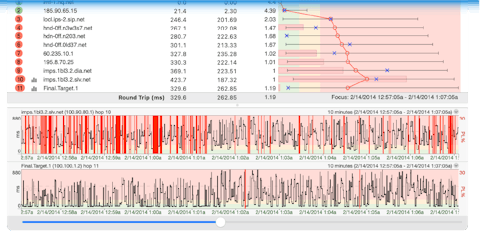
Discovering the route between you and a target Let’s run through a basic scenario where we discover the route between your computer and an interesting destination (maybe one you're having a problem with). Normally, when troubleshooting a problem, you want to run PingPlotter against the server where you're experiencing problems. Maybe that's a web server (in which case, you'll want to enter that web server's address); maybe it's a game server (in which case you'll want to enter that game server's address). If you aren’t experiencing problems with your network connection or something you access with it currently, no worries – just think of something you access regularly with your Internet connection to use in the exercise below. If you really can’t think of anything right now, feel free to use something interesting like quikorder.pizzahut.com or bigmac1.mcd.com. It doesn’t have to be food related either... If you don’t like Pizza Hut or McDonalds, and can’t come up with a server off the top of your head, use www.pingplotter.com. We’re assuming here that you’ve downloaded and installed PingPlotter. If you haven’t, please see the Downloading and Installing PingPlotter section for instructions on how to do so. So load up PingPlotter, and let’s get started! For now let’s leave all the other settings you see on the screen as they are. 2. After you’ve typed in the address, either press the Enter key on your keyboard, or press the Trace button in PingPlotter’s lower left corner. The trace then starts, and you’ll see the upper Trace Graph populate with the route information to the target you entered. The Timeline Graph for that target will be displayed also below the Trace Graph. Before we start looking at the graphs, it’s important to cover the concept of a Sample Set because we’re going to be mentioning it a lot. The sample set is defined by the Samples to include: box above the Trace button (which will actually be a Stop button if your trace is still running). The PL%, and Avg columns in your trace graph are all computed off of this number. If this value is set to 10, PingPlotter uses the last ten samples it’s done and bases everything off that number. If it’s set to 20, PingPlotter uses the last twenty traces it’s done, etc. As we go through what you’re actually seeing on the graphs, just remember that the Sample Set is based off the value in the Samples to include: box, and that number represents the number of samples - starting with the most recent and working backwards. The Trace Graph The Trace Graph shows you how many hops there are between you and the destination you entered previously. If this is your first time running PingPlotter, or if you haven’t made any changes to unhide other columns, you will see the following columns (starting from the left):
So what does your Trace Graph look like? How many hops are between you and the site or server you’re tracing to? One thing that is kind of an “ah ha!” moment for a lot of first time PingPlotter users is seeing that you really do have that many devices your network traffic passes through to get to web sites, servers, etc. If you click on a web page link, that “click” is passed on by all those hops to that final web server/page, that web server executes that click, passes the information back to you through all those hops and you see it on your browser. The Timeline Graph The Timeline Graph is the lower scrolling histogram that you see when PingPlotter is running traces. It is a graphical history of every trace returned, or not returned, from the target. The black line shows you the average latency (as mentioned above, the roundtrip time in milliseconds for the final destination), while the red line shows you packet loss. We’ll cover the Trace and Timeline Graphs in more detail when we delve into problem identification and determination. Everything you ever wanted to know about the graphs in PingPlotter, including the other columns available to you for the Trace Graph, more in depth definitions of everything on it, and more information on the Timeline Graph, is available in the Graphs section of our online Tutorial and Product Manual. Tip: While we do recommend you continuing on through the rest of the Getting Started Guide, there is a specific example in the PingPlotter Tutorial and Product Manual that discusses troubleshooting a problem with a broadband ISP connection using PingPlotter. There are numerous examples of PingPlotter output interpretation in the Tutorial and Product Manual (under Interpreting PingPlotter Output), but to see the specific example dealing with broadband ISP problems please see the Problems with your ISP example.
Some things to consider before we move on:
|


1. Enter the IP Address (i.e.