

Contents
| Previous | Next
For this example,
let's assume you're an online gamer, specifically a Quake III player (though the
following is representative of any online game really - flight sims, online
RPGs, etc.). You've got two servers that are running the same maps you like
to play, so the only issue you have is which one out of the two is going to
give you a better connection. I realize some folks aren't going to be so patient
as to use the method below to decide which server they're going to play on...bear
with me here. We're learning! The same topics we go over in this section, as
far as graph interpretation, are also applicable if you were trying to figure out
why a connection to a specific server you were just playing on is so cruddy.
The first thing you need is the IP addresses or DNS names for
the two servers. You'll launch Ping Plotter, enter the IP address of the
first server into the Address
to Trace box and click the Trace button. Five seconds is a good value for
the trace interval, and the
# of times to trace should
be unlimited (we're gonna watch it for awhile). You'll then launch another session
of Ping Plotter and enter the second server's IP address using the same settings
you used for the first server.
You then go get
yourself a Diet Pepsi, do some stretches or whatever in preparation for a night
of gaming. When you get back to your computer you'll have two graphs that look similar to the ones below. Let's analyze both and see which server you want to play on.

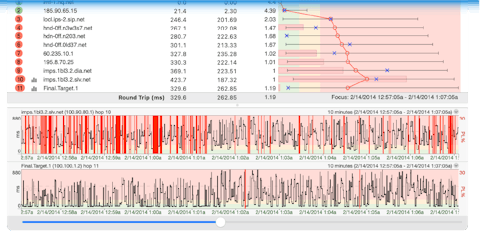
Hmm. This doesn't look too bad until you get to hop 10 and start looking at the history
graph. Let's take the history graph first.
Red is bad. Every time you see red on the history graph you had a timeout,
or in other words there's dropped packets. Packet loss is the bane for most online
games. When you're running across a big open area and then all the sudden *blip*
your on the other side (most likely dead), that was more than likely caused
by timeouts, or packets you didn't get from the server or to the server. Besides
the red lines on the history graph, you can also see your packet loss in the
PL% column and, if you look at hop 11, the horizontal red line contains your
packet loss value.
Digging a bit
deeper, you can see that you're running under 111ms (the Max at hop 2) all the
way down until you hit hop 10. Notice that you move off of Touchamerica's backbone
into USWest/Qwest between hops 7 and 8. No problem there, there's plenty of
bandwidth between those two providers since the time doesn't really go up. From
the DNS on hop 9, we can see that hop is a gateway (thus the mpls-dsl-gw7 part
of the name) to some DSL customers. Where we start running into problems is
when we get off of Qwest Minneapolis and hit the Mediagods domain that's hanging
off the DSL link. All the sudden your latency goes up to 330-501ms at hop 10.
That DSL connection is busy. Once you make it to the server at hop 11, not only
is your latency still way up there, but you're getting 10% packet loss. That
server is a busy bee also it seems. So busy that he's not keeping up. Combined
with the bandwidth saturation we're getting on the DSL line itself, it's best
to try later. We don't want to play here.
Now let's look at our second server.

Now this is more like it. Really, anything under 150 ms is a great connection.
Most online games are designed to not crater the 56k gamer. We don't even make
it over 40ms until hop 12. Sweet.
Let's look at that connection between hops 11 and 12. Notice from the DNS names
that you actually go from Seattle across Global Crossing's backbone to Cleveland.
When you factor in speed of light latency, you can account for about 40-50ms
of your latency to hop 17 with that hop across the backbone between hops 11
and 12. So you've got a 120-130ms ping to hop 17. That's pretty good. If you
didn't have that fat pipe installed, and were instead running a modem, you'd
probably be running at about 220-230ms for your latency.
"What about that 10% packet loss at hop 16?", you ask. Judging from
the numbers for that hop and hop 17, what we're most likely dealing with here
is a router that probably has a low priority for ICMP packets. A lot of network
admins will set a router up to drop ping/ICMP packets first if it starts getting
busy. Another hypothesis is, judging from the private 10.x.x.x address at hop
16, most likely hop 17 is probably sitting behind a cable or DSL connection
like the first server we looked at. With the myriad of DSL/Cable modems out
there, some of them don't have the most solid BIOS running on them. The problem could
be that the router is just a little flaky. If you look up Adelphia.net, you can
also see that it's a cable provider. Isn't traceroute fun? *grin*
So which server are you going to play? Obviously it's the second server above.
Other considerations
Your graph results can be affected by a number of things that are out of Ping Plotter's control.
1. In the analysis of the second graph above, we mentioned that hop 16 is more
than likely just a problem with that router not giving us back good information.
Many routers put a low priority on ICMP traffic.
Still others don't even echo back requests (this will show up as a blank
entry for that hop). Obviously Ping Plotter has no control over these
situations.
2. Ping Plotter can't track the route that your traffic takes on the return
trip from the server back to you. If your inbound traceroute traffic is taking
a different route back to you than the outbound traffic to the server, this
is called an asynchronous route. By definition
traceroute doesn't take these types of routes into account and, unfortunately,
Ping Plotter isn't going to be able to tell you about problems with the return
route in these cases. One clue that this is happening is that you'll have a
great trace up until the last one or two hops on your trace. In other words,
you don't have an easily identifiable problem at hop X further up the route
that is mucking up the rest of the route downstream.
One thing you can do is save your trace data to a text file and post it up on
a support message board for the particular game that you're playing. Even better,
save off a graph and post it instead. Many savvy game server admins will actually
do a traceroute (or even better a Ping Plotter trace... *smile*) back to you and be able to tell you if there's problems with a route back to you when asynchronous
routes are involved.
There are some sites that can do traceroutes back to you if you want to investigate on your
own. They can be found here.
In closing, we
can't emphasize this enough - latency is the bane of online gaming. Much
more so than bandwidth limitations. The good thing is that Ping Plotter can
tell you this latency, and provide you with ammo in the way of trace and graph
data when you're beating up on your ISP.