![]() |
|
![]() |
|
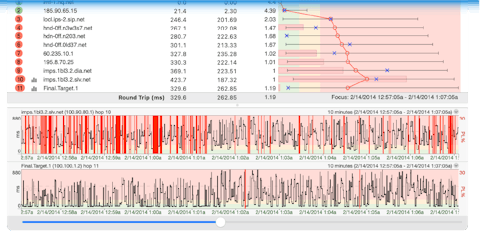
Using a remote server as the source of the trace PingPlotter Pro is able to initiate trace requests from a remote "agent" on both Windows and UNIX based machines. The UNIX agent requires perl, a web server and the traceroute command, whereas the Windows agent is fully self-contained (it has its own TCP server and GUI component) and does not require any additional software or server components. The basic concept of the remote trace agent is that it resides on a remote machine listening for a request for data. When it receives a request, it does a single traceroute and returns the results back to PingPlotter Pro. PingPlotter Pro then collects this data and displays it locally like any other trace data. The interval at which PingPlotter Pro contacts the remote agent is controlled by the Sampling parameters (# of times to trace, Trace interval, etc.) you've defined locally via the PingPlotter Pro interface. When using a remote agent, PingPlotter works and looks the same as it does when you're using the local engine. Essentially the only difference is that the trace isn't originating from the workstation running PingPlotter Pro, but instead the agent is allowing you to source and see the traceroute from the vantage point of the machine running the remote agent. You can even see the results from multiple remote sources/agents by defining and using Named Configurations. Requirements:
Installation instructions
Installing the Windows Agent The PingPlotter Pro remote agent for Windows is a self-contained executable that includes a small server and some portions of the PingPlotter core trace engine. This agent can run as an application under Windows 98 or higher, or as a service (it can actually run as a service on Windows 98 as well, but you'll want to contact us for additional instructions). Note: Presently the Windows agent does not come packaged with an installer or uninstaller.
PingPlotter Pro Remote Windows Agent V0.8.2.18 Tracing to: Error: Must specify an IP Address
Continue on to the Configuring PingPlotter Pro to use a remote agent section. The windows agent has a few options, to see about its use, see the configuring the Windows agent section.
Installing the UNIX Agent The PingPlotter Pro remote agent for UNIX is a perl script that uses the UNIX traceroute command to gather sample set(s) and pass the results to PingPlotter Pro via a web server. Because of all the various flavors of UNIX that exist, and the possible differences when it comes to output of the traceroute command, you may need to modify the script for your particular source machine. We've primarily tested under FreeBSD. Contact us if you have problems here.
PingPlotter remote trace agent, V0.3 1 192.168.1.1 0.684 ms You'll probably have more hops than this. This is just an example if you were using an IP local to your server.
Continue on to the Configuring PingPlotter Pro to use a remote agent section. Configuring PingPlotter Pro to use a remote agent Once the remote server(s) are configured, we need to set up PingPlotter Pro so it knows about those servers.
Turning on the remote trace capability. By default, the remote engine capabilities of PingPlotter Pro are disabled. To enable them:
This will enable PingPlotter Pro to do remote agent testing, but you'll need to create a named configuration for each remote agent you want to use (not each target, but just each remote agent machine). Creating a named setting (configuration) to use a remote agent. Named configurations are covered in more depth in the named configuration section.
Usage Instructions Now, on the main PingPlotter Pro screen you'll see a "Settings" dropdown below the "Address to trace" field. Pick "via (servername) ..." there (or whatever you named your configuration). Enter your target, and then click on the Trace button.
That should access your remote server and populate data into PingPlotter Pro from that. Warning: Your tendency will be to pick a server very familiar to you, which in a lot of cases is going to be the same server you just set up the script on. If you do this, your trace will only be one hop long!
Error handling and troubleshooting A remote agent adds additional complexity to any deployment, and PingPlotter's is no exception to this. In an attempt to keep things as simple as possible, and still satisfy our needs, we use existing technologies - web servers, http, existing command-line tools (for UNIX, where good ones exist), etc. This means that in most cases we're dealing with familiar territory when troubleshooting. All the remote agent capabilities can be accessed via a web browser. If PingPlotter Pro is having problems reaching a remote agent, then you can use your web browser to check and verify. You can also use PingPlotter Pro (not the remote agent) to constantly monitor the availability of the server and route to the remote agent. If the remote agent is inaccessible for some reason, there is a network failure between the PingPlotter Pro machine and the agent for example, any alerts you have configured will not fire. If you want an alert to fire, you need to set up PingPlotter Pro to monitor the agent machine itself. There are a number of configuration challenges that might hit you here, but these should be familiar to you if you've done much network and/or application troubleshooting. ZoneAlarm, for example, might block access between PingPlotter Pro and the agent machine. Other firewall issues could also come up. If you view the remote agent as a web server, the troubleshooting techniques you've used elsewhere should help you here too. If PingPlotter Pro is unable to reach the agent, because of an authentication problem or network failure, the error will appear above the trace window on the targets it applies to. This message might be an HTML error (e.g., 401 authentication failed), or a network failure message. These events will show up in PingPlotter Pro's time graph the same way a route change does, with the background color on the time graph matching background colors elsewhere rather than having the graph scale colors painted on.
Notes, thoughts, shortcomings... The Windows agent uses a fully threaded engine to make working with it just as responsive as working with the local engine (if there is a timeout, other hops will still report back). For the UNIX agent, though, if hop 1 times out hop 2 won't report back until the timeout period has elapsed. This means there may be times, when the trace interval is < 5 seconds, where you see empty spots in the data that later fill in with a lost packet or a good sample. Everything works, just the results get delayed a bit. The Windows agent shouldn't have this problem. Configuring the Windows agent Because the Windows agent is a full-fledged server unto itself, you may want to have it behave differently depending on where you're installing it. Server Port The default server port of the Windows agent is 7465. If this doesn't work for some reason in your network, you can change it by right-clicking on the tray icon and selecting the "Settings..." option. Clicking on the "Apply" button makes that change immediately, and if the server is unable to start on that port an error will occur. Security You might not want to expose the agent to anyone or limit access to it. This can be done via the username / password settings in both the agent and the remote trace setup in PingPlotter Pro. The authentication system uses standard HTTP basic authentication. If the agent requires a username / password, and it doesn't match what's specified in PingPlotter Pro, an error will show up in PingPlotter Pro. If no username or password is required by the agent, then the username / password settings in PingPlotter Pro will be ignored.
Running the agent as a service If you want to be able to trace from a machine at any time, you can install the agent as a Windows Service. This works on Windows 98 and Windpws ME also, but you'll need to contact us for some additional instructions. To install as a service, browse to the agent's install directory using a command prompt and then enter the following command: PingPlotter_Remote_Agent /install After doing this the agent will show up in the control panel services applet, or you can start the service manually with this command: net start PP_RemoteAgent To uninstall the service (remember that because there is no installer / uninstaller for now, you'll need to manually remove it), stop the service, then run this command: PingPlotter_Remote_Agent /uninstall You can also use the "/reinstall" parameter to register the agent in a new location. If any of these commands have an error, then you'll get a popup message telling you about that error. If you have no errors, then the command will complete with no popup messages. If you do get an error, you can check in the "PP_Remote_Agent_error.log" file to see what the error was.
Configuring the UNIX agent The UNIX agent is much simpler (more primitive?). It's a perl script that runs the traceroute command and shows the output on a web client. Because it uses an existing web server, all the settings need to be configured on that server including the server port and security. Security Because PingPlotter Pro uses standard basic authentication to secure access to the agent, you just need to password protect the agent application using an .htaccess security setting (if you're using apache, which most people are). PingPlotter Pro will send the username and password to the web server using this protocol, and it should all just work. As always, please contact us with questions.
|