

![]() |
|
![]() |
|
The Interface - Graphs
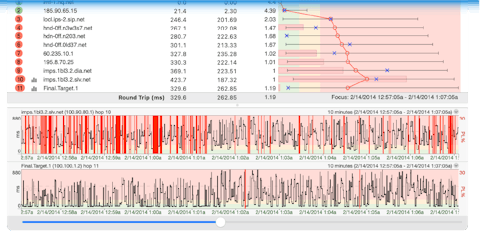
The upper graph is called the Trace Graph. The lower horizontal graph is called Timeline Graph.
1. Shows you the thresholds you've set for the colors on the trace graph background. In this case we've set 50ms as the warning color, and 90ms as what we thought was a critical speed. PingPlotter defaults to 100ms and 300ms for the warning and critical values, however you can change them as we did here in the Display section of the Options dialog available under the Edit menu. 2. The red line on the graph represents the average response time for each host. The blue X represents the response time for the current packet (can be turned off if you're sending a copy of your graph to somebody - some folks find it confusing when they're not actually there watching the live trace). The black horizontal lines represent the minimum and maximum response times. The red horizontal bar shows the packet loss for that hop (same as the PL% column, but there for readability). PingPlotter uses a dynamic scale for its graph. The bottom number is usually 0, and the top number represents the maximum response time in milliseconds. If you wish, you can change this to a fixed scale in the Display section of the Options dialog available under the Edit menu. 3. The Avg column shows the average response time of the last N samples (where N is the samples to include). Any timeouts/lost packets are not included in this value. The Cur column shows the individual sample time of the most recent sample included in the set. If a number is displayed as ERR, that means the packet was lost, i.e. a packet was sent out, but never made it back. These, as well as all other columns, are resizable. 4. This column shows the DNS name of the device for that hop. A ---------- in this column indicates that PingPlotter was unable to resolve a name for that device's IP address. This is not a flaw in PingPlotter. It just means that your DNS server doesn't have a name for that IP address, or that address just doesn't have a DNS name period. 5. The Round Trip line is basically there for ease of reading. It's the same value as the last server in the route. This is the time it takes for a ping to get from your computer to the target device and back. 6. The Timeline Graph (TG) is one of the most powerful features in PingPlotter, and great or long-term monitoring projects you may be doing.
7. With version PingPlotter v2.40 and above, you have the capability of adding a comment on the Timeline Graph. Comments are denoted by a red up arrow, and are a very handy feature enabling you to add a comment (that is saved when you save the sample set) for things like planned outages, configuration changes or whatever else you want to make a note of. 8. The IP address for that hop. 9. The PL% indicates the number of packet(s) that have been lost in the current sample set. If you're only including the last 10 samples, then only the number of lost packets in the last 10 samples are shown here. If you want to find out how many time-outs have happened over the entire session, change the "Samples to Include" to 0. This is important. There is no ALL setting for this. 0 = ALL. 10. The number of hops that device in the route is from your computer. If a hop has brackets around it (like [8]), this means that hop is being monitored for an alert (alerts are covered in the advanced settings section of this tutorial). Multiple alerts can be configured for the same IP, and alerts don't work unless some IP in your current route is being monitored (i.e. has brackets around it). If a hop has an underline under it (like 8), that hop is being traced on a time-line graph. 11. The brackets ([]) on a hop shows that you have an alert tied to that hop. Alerts are covered in depth in another section of this document. 12.
Beginning and ending times/dates for the trace. Very useful if you're saving
off graphs. It's nice to know the time window the trace was done in. To the left of the times/dates is the number of samples in the sample set you saved in the graph image. Tools and other options available for the Trace Data Graph You can display the Minimum and Maximum columns by right clicking on the Trace Data Graph (TG) and selecting them. You can copy the IP address or DNS name for a hop to the clipboard by right-clicking on that hop, selecting the Clipboard option and then clicking on what you want to save. You can do a WhoIs on a particular hop by right clicking on it and selecting WhoIs Information. Note that by default this queries whois.crsnic.net. You can add additional WhoIs servers by editing your pingplotter.ini file. Instructions for doing this are in the Advanced Topics and Tips - WhoIs section. You can lookup who owns that particular IP rangea hop is in by right clicking and then selecting "IP Block Lookup (ARIN)". |


The graphs are
where PingPlotter really shines. At a glance, you're able to visually see where a
problem lies. There are actually two graphs available, the Trace
Data Graph, and the Timeline Graph.
We'll explore both
in this section, as well as some other items related to them. Please refer to the below image (annotated with the blue numbers) that we've saved from PingPlotter (File>Save Image), and the explanations (referencing the blue numbers) below the graphs.