

Version 5 Manual
Final Hop Only
Final Hop Only allows you to trace only the final hop of a target, as opposed to tracing the full route. This helps simplify sessions involving a high number of targets and save bandwidth by only pinging one hop.
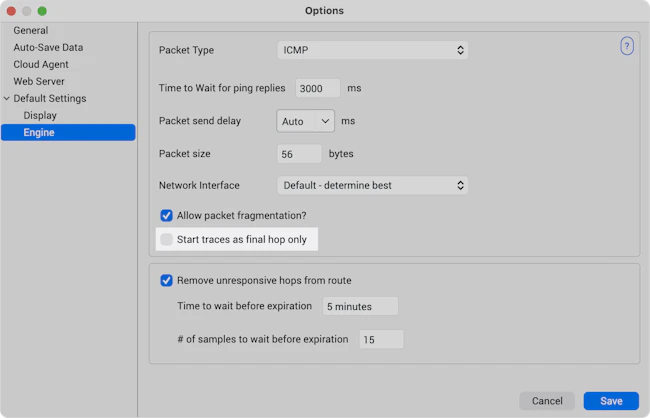
In PingPlotter’s settings, under “Engine,” is the option to start all new traces as final hop only. Selecting this option will not affect existing traces.
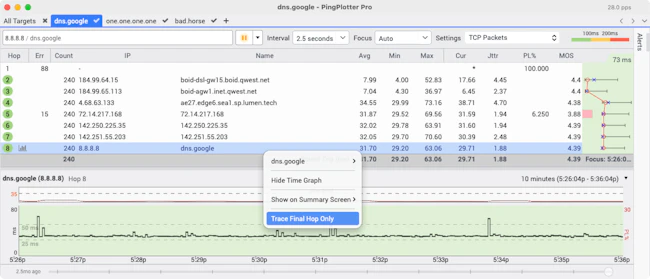
To toggle Final Hop Only on individual traces, right-click on a target's final hop and select "Trace Final Hop Only." You can return any final-hop target to tracing the full route by right-clicking on the target and selecting "Trace Full Route."
Setting Alert Actions for Final Hop Only
In addition to manually toggling Final Hop Only, you can set a PingPlotter alert action to automatically switch modes when specific conditions are met.
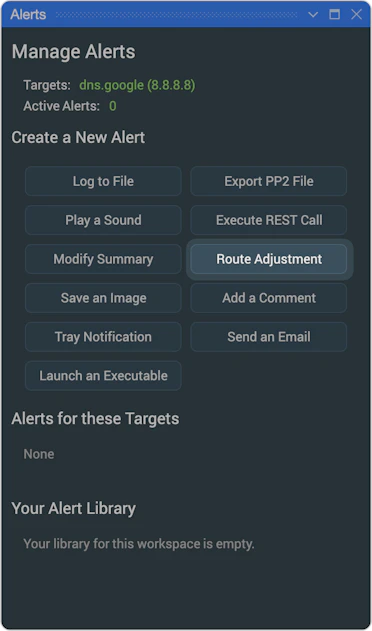
In the Alerts menu, select "Route Adjustment."
Set your conditions, preferred action, and alert name, then select Finish. You can also add additional actions to toggle the route to its original state when conditions are no longer met.