

Version 5 Manual
Desktop and Cloud Together
A computer can run PingPlotter Desktop and be a PingPlotter Cloud agent at the same time. The desktop edition (Free, Standard, or Professional) covers the targets people start themselves in PingPlotter. Targets you manage from PingPlotter Cloud run on the same computer, but your Cloud account covers them, so they never count against the edition. Connecting to Cloud doesn't change the edition either. For what each edition includes, see the feature comparison page.
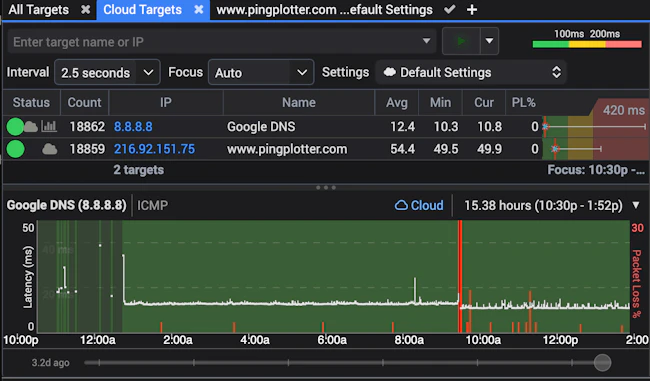
Who sees Cloud targets
Cloud targets always run on the agent computer. Each agent's Agent UI permissions in PingPlotter Cloud (or your account's defaults) decide whether someone using PingPlotter on that computer can view them, and whether they can control them.
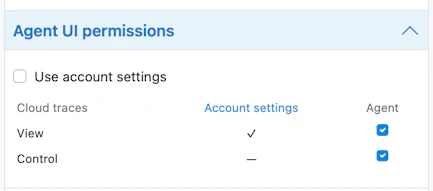
On your own computer. Turn on View and Control. Cloud targets show up in the Cloud Targets summary next to anything you're running yourself, and you can adjust them from PingPlotter or from your browser in PingPlotter.cloud.
Employees' computers. Most teams turn on View and leave Control off, so changes happen in PingPlotter Cloud. Someone working from home can open PingPlotter and see what their connection looks like, using PingPlotter to monitor and troubleshoot their connection issues, but only as a viewer.
As a service provider with customers. Turn off View and Control, so Cloud targets are only visible in the Cloud UI. Someone using the local computer can open PingPlotter and run a quick trace on Free for local troubleshooting.
Want help choosing, or need something different?
Our team can help you find the right setup for your team or customers, or customize options for your rollout. Contact sales.
Connecting your own computer
- In PingPlotter, open settings and select Cloud.
- Select Sign in and add this computer and sign in to your Cloud account in your browser.
- If you already added the computer in Cloud, select Enter Setup Link… instead and paste the setup link from Add agent.
Once it's connected, the Cloud indicator in PingPlotter reads Cloud agent. Rolling out to other computers is covered in Individual Agent Deployment and Mass Deployment.
If your IT team or provider set it up
If PingPlotter came from your company's IT team or your IT provider, they're probably watching your connection from PingPlotter Cloud. Whether you see their targets in PingPlotter is their call. You can still run your own traces any time, and they won't touch the Cloud targets.
Help → Change Editions shows which edition you're on and whether the computer is connected to Cloud. Questions about the Cloud targets go to whoever set it up.
Moving a target into Cloud
Right-click a target's tab and select Add to Cloud. Its settings move to your Cloud account and it keeps tracing from the same computer, now as a Cloud target. Remove from Cloud reverses it: the target goes back under the edition, and its Cloud history is archived. If the edition is already at its target limit, PingPlotter tells you before it changes anything.
If the agent computer drops offline, Cloud targets keep collecting for as long as your account allows.
Professional trials
When a computer becomes a Cloud agent during a Professional trial and nothing is running in PingPlotter, PingPlotter switches to Free and pauses the trial. If something is running, the trial keeps going. PingPlotter installed as a Cloud agent starts with the trial paused.
To use the rest of the trial, open Help → Change Editions and choose Try Standard or Try Professional. It picks up with the days that were left.
Leaving Cloud
If the computer is removed from your Cloud account, or the subscription ends, Cloud targets stop collecting there. Anything people run in PingPlotter themselves keeps working as before.