

PingPlotter Cloud Manual
Groups & Tiers
A Per target action runs once for every target that triggers. That's great when you want to hear about each problem, but if an ISP goes down and 40 targets trigger at once, you get 40 notifications.
Combined actions count targets together instead. They let you:
- Send one notification when several targets are affected at the same time.
- Escalate with tiers as more targets are affected.
- Link several Alerts together so they share one count and one set of notifications.
Combined Actions
Switch an action card to Combined, then click the number to choose how many targets it takes, e.g. When 5 or more targets have been triggered for 2 minutes.
The action runs once when the count is reached, and the email lists every target that's triggered. If you've turned on Notify when recovered, the recovery runs once when the count drops back below the threshold. Use Retrigger while active to send reminders while the problem lasts.
Each target is only counted once, even if it's triggered by more than one Alert in a linked group.
Tiers
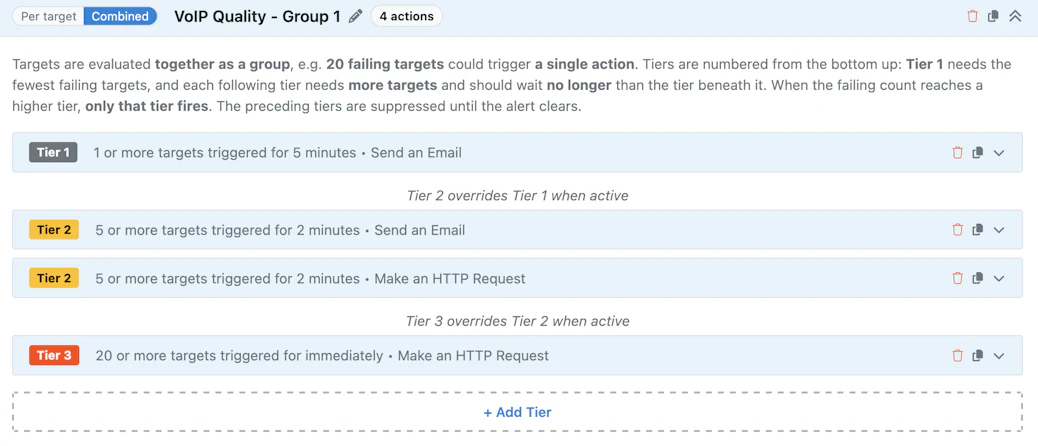
Tiers let one group of actions escalate as a problem grows. For example:
- Tier 1 - when 1 or more targets have been triggered for 5 minutes, email the help desk.
- Tier 2 - when 5 or more targets have been triggered for 5 minutes, post to the IT chat channel.
- Tier 3 - when 20 or more targets have been triggered, page the network team right away.
To add tiers, click + Add Tier on a Combined action. The action becomes Tier 1 of a new group, and a Tier 2 is added above it. Keep clicking + Add Tier at the bottom of the group to add more. Each new tier starts with a higher target count, which you can change.
How tiers work
- Tiers are numbered from the bottom up. Tier 1 needs the fewest targets.
- When the count reaches a higher tier, only that tier runs. The tiers below it are suppressed until the group clears, so people aren't notified twice about the same problem.
- Actions with the same target count share a tier number, and they all run.
- When the count drops below Tier 1, the group clears and its recovery actions run.
Higher tiers shouldn't wait longer
Each tier should wait no longer than the tiers below it. If Tier 2 waits 10 minutes but Tier 1 waits 2, Tier 1 always runs first and Tier 2 can never take over. The editor shows a warning icon on any tier set up this way.
Managing a group
The header of each group shows its name, how many actions it has, and whether it's shared with other Alerts. Use the icons in the header to:
- Rename the group with the pencil icon. Groups are named after the Alert by default, e.g. VoIP Quality - Group 1.
- Duplicate the group with the copy icon.
- Remove the group with the trash icon. Choose Delete all actions to remove everything, or Eject actions as standalone to keep each tier as its own separate action.
- Collapse or expand every action in the group.
Switching the group's header to Per target turns it back into a single action. Tier 1 is kept as a Per target action and the other tiers are deleted.
Linked Groups
A linked group is shared by more than one Alert. Every target triggered by any of the linked Alerts counts toward the same total, and the group's actions run once for all of them.
For example, link a "Poor VoIP Quality" Alert and a "High Latency to Phone System" Alert to one group. If 10 call center agents are having trouble, the team gets one notification, no matter which Alert caught the problem.
Adding a linked group to an Alert
In the Actions section of the Alert editor, click the arrow next to + Add Action and choose + Add Existing Group.... Then pick one of the options:
- Link to an existing group - share a group that other Alerts already use. Changes affect every linked Alert.
- Copy a group from another alert - start with a copy of another Alert's group, without sharing it.
Search for the group by name or action type, select it, and click Add Group.
Shared groups show a Shared with N other alerts badge. Because changes affect every linked Alert, you'll be asked to confirm before your first edit.
Duplicating an Alert
When you duplicate an Alert, the copy joins the same linked groups as the original. Groups that aren't shared are copied, so changes to the new Alert don't affect the original.
Managing linked groups
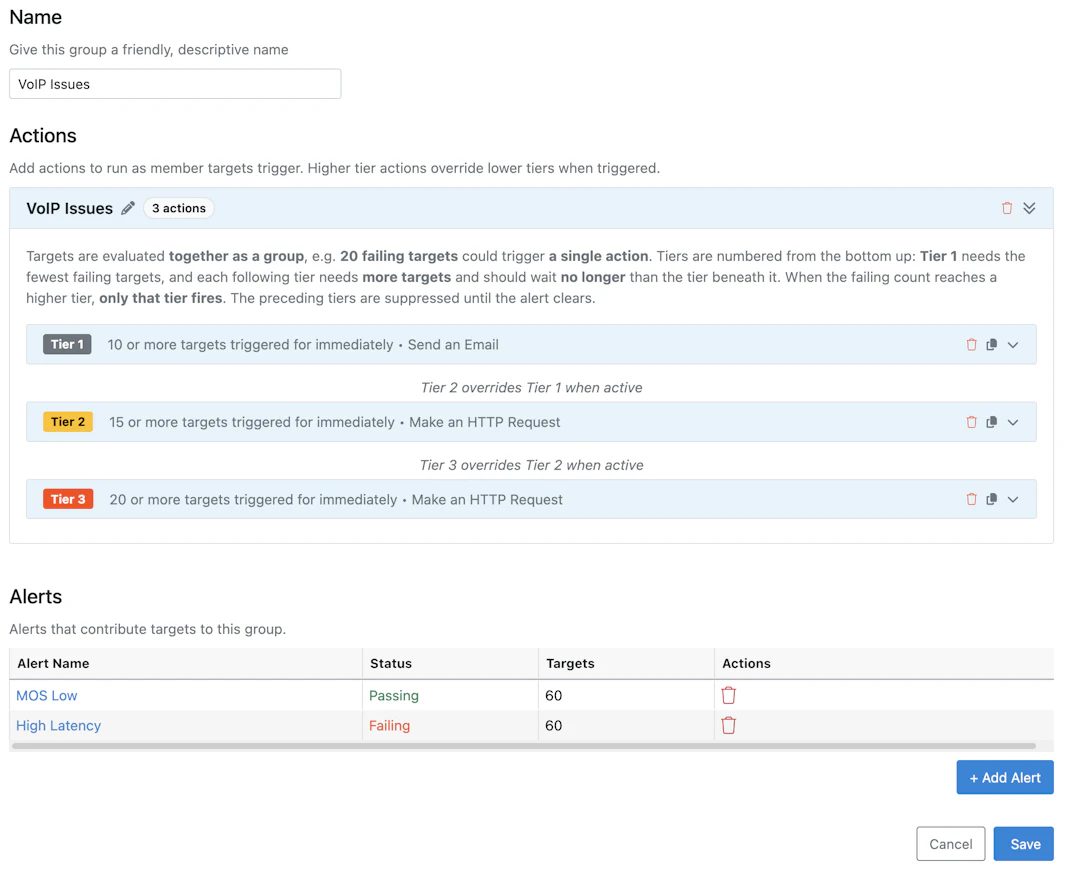
Once a group is shared by two or more Alerts, it's listed in the Linked Groups table on the Alerts page. Click a group's name to edit it, or click + Create Group to make a new one. The group editor has:
- Name - a friendly, descriptive name for the group.
- Actions - the group's tiers and actions.
- Alerts - the Alerts that count toward this group. Add or remove Alerts here.
- Active Targets - the targets that are counting toward the group right now.
The Condition column in the Linked Groups table shows whether the group is triggered and how many targets are counting toward it. Click it to see the list of targets.