

PingPlotter Cloud Manual
Schedules
Schedules control when an Alert's actions are allowed to run. Use them to only get notified during business hours, keep weekend problems out of the help desk's inbox, or send after-hours problems to a different team.
An Alert with no schedule can run its actions at any time.
Create a Schedule
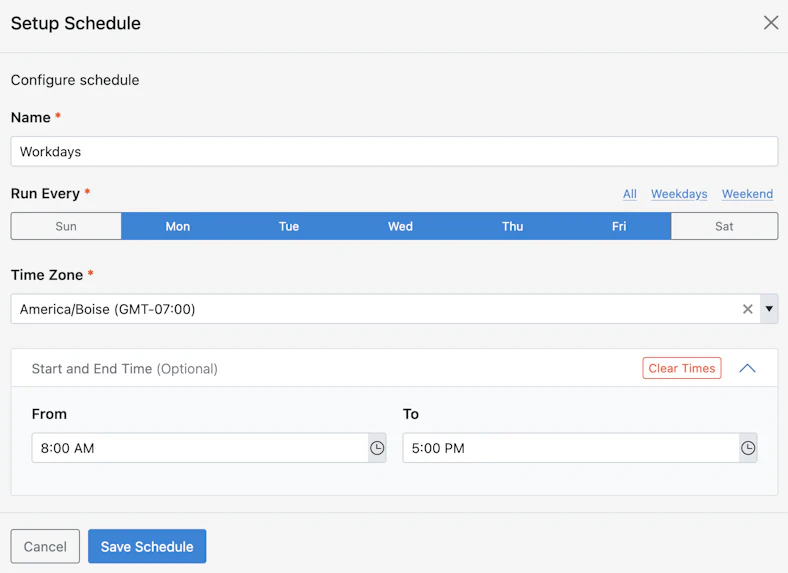
You can create a schedule in two places:
- Go to Manage → Schedules and click Create Schedule.
- In the Alert editor, click + Add Schedule in the Additional Options, then + Create Schedule.
Then fill in:
- Name - a descriptive name, e.g. Business Hours.
- Days - which days of the week the schedule is active. At least one day is required.
- Time Zone - the time zone the schedule's times are in.
- Start and End Time (optional) - the time of day the schedule starts and ends on each selected day. Leave both empty for all day.
Assign a Schedule to an Alert
In the Alert editor, find Run actions only during a schedule under Additional Options and click + Add Schedule. Click a schedule to select it, then click Done. Assigned schedules are shown below the option. Click the X on one to remove it.
You can also click the calendar icon next to an Alert on the Alerts page to assign schedules without opening the editor.
If an Alert has more than one schedule, its actions can run whenever any of them is active. For example, assign a Weekdays 8-5 schedule and a Saturday 9-12 schedule to cover both.
How Schedules Affect Alerts
Schedules only control the actions. The Alert keeps watching your targets all the time, so its status on the Alerts page is always up to date.
- When an action would run outside the schedule, it's skipped and shows as Suppressed in the Alert Log.
- When the schedule starts again, any target that's still triggered is sent then, so problems that started overnight aren't missed.
- A recovery is only sent if its trigger was sent. If a problem started and ended while the schedule was off, you won't hear about it.
Manage Schedules
Go to Manage → Schedules to see all of your schedules. From here you can edit, duplicate, or delete them.
One schedule can be used by many Alerts. When you edit a schedule that's in use, a message lists the Alerts it applies to, since your changes affect when their actions can run.
Schedules vs. Pause
Use a schedule for hours that repeat every week. To silence an Alert one time, like during planned maintenance, pause or snooze it instead.