

PingPlotter Cloud Manual
Alert Preview
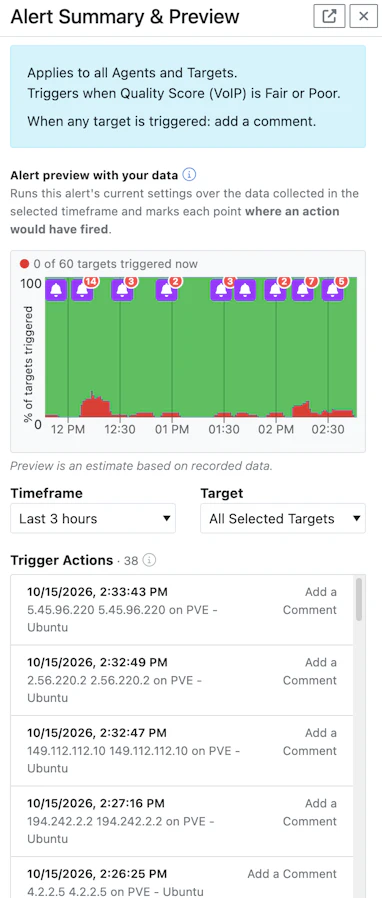
The Alert Preview answers the question "how noisy will this Alert be?" before you save it. It runs the Alert's current settings over data you've already collected and marks every point where an action would have fired.
Run a Preview
The preview is in the Alert Summary & Preview panel on the right side of the Alert editor. It appears once you've chosen a condition and at least one target.
- Choose a Timeframe, from the last hour up to the last 7 days.
- Choose a Target, or All Selected Targets to see every target the Alert applies to.
- Click Run Preview.
For a single target, the preview shows its timeline graph with a bell at each point where an action would have fired. For all targets, each target gets its own row.
The Trigger Actions list below the graph shows every action the Alert would have run, newest first. Click a bell or an item in the list to see exactly what the action would have produced, like the email's subject and body, or the HTTP request's body.
If you change the Alert's settings after running a preview, you'll see a Settings changed message. Click Refresh to run it again.
Need more room?
Click the undock button at the top of the panel to pop the preview out into a window you can move and resize. Click Dock to put it back.
Preview is an Estimate
The preview is a close estimate of what the Alert would have done, not an exact replay:
- Summary data - to keep the preview fast over long timeframes, it works mostly from 5-minute summaries of your data and checks the full-resolution data where an action is close to firing. Over long timeframes with lots of targets, it may not be able to check all of them, so some times can be off by a few minutes.
- Recorded data only - the preview can only use data that was collected. If an Agent was offline, there's nothing to preview for that time.
- Route conditions - IP Address in Route and Route Changed can't be previewed.
When an Alert Is Too Noisy
When you preview All Selected Targets and the Alert would have fired more than 50 actions in a single hour, the preview stops before checking the rest of your targets. The Trigger Actions count shows a + to let you know there may be more. Click Load More at the bottom of the list to raise the limit and keep going.
An Alert that fires this often is usually a sign that it needs adjusting. See Reducing Alert Noise for ideas.